Use Your Phone as a Microphone — Save Money and Get Clear Audio
Using your phone as a microphone is one of the smartest ways to improve audio quality without spending money. Many people need a good mic for online meetings, gaming, recording, or streaming. But buying a new microphone can be expensive, especially professional ones. Fortunately, your smartphone already has a high-quality built-in mic that works extremely well.
Smartphones have advanced noise-cancellation systems and high-quality audio chips. These make them perfect alternatives to USB microphones. With the right apps and setup, you can turn your Android or iPhone into a fully working computer microphone for Windows or Mac.
In this guide, you’ll learn every method to connect your phone as a microphone through Wi-Fi, USB, Bluetooth, or Direct Connection. We will also cover the best apps, troubleshooting, and real user scenarios.
Key Takeaways
- You can use your phone as a microphone on Windows using the free WO Mic app with Wi-Fi, USB, Bluetooth, or Wi-Fi Direct.
- Mac users can use Microphone Live to connect an iPhone as a microphone using a USB cable.
- Smartphones replace costly microphones for gaming, recording, meetings, and streaming.
- The setup is free, fast, and provides excellent sound clarity.
Using your phone as a microphone is most useful for students, creators, gamers, office employees, and online meeting users. The best part is—you don’t need extra hardware.
Using Your Phone as a Microphone on Windows (WO Mic Method)
Windows does not offer a built-in option to convert your phone into a microphone. To do this, you need a free third-party app called WO Mic. This popular tool is used worldwide and supports Android and iPhone devices.
WO Mic allows you to connect your phone using:
- Wi-Fi
- Bluetooth
- USB cable
- Wi-Fi Direct / Hotspot
This makes it extremely flexible for different setups. The installation takes just a few minutes, and once connected, your phone will appear as a regular microphone in Windows.

Steps to Install WO Mic on Windows
First, open Google Play Store or App Store and download WO Mic on your smartphone. Then, go to the official WO Mic website on your Windows computer and download both the “WO Mic Client” and “WO Mic Driver.”
During installation, Windows may require you to install Microsoft VC Runtime Redistributable. This is extremely important; if skipped, the app may show missing DLL errors.
After downloading:
- Install the WO Mic Client.
- Install the WO Mic Driver.
- Restart your computer to apply changes.
Once the installation is complete, your Windows PC is ready to connect with your phone.
How to Connect Your Phone to Windows Using Wi-Fi
Wi-Fi is the most popular method because it is wireless and easy.
Follow these steps:
- Make sure your phone and PC are connected to the same Wi-Fi network.
- Open the WO Mic app on your phone.
- Go to Settings → Transport → Select Wi-Fi.
- Tap Start and note the IP Address displayed.
- Open WO Mic Client on Windows → Select Wi-Fi.
- Enter the IP Address.
- Click Connect.
The phone will instantly start working as a microphone.

Using Other Connection Methods (Bluetooth, USB, Hotspot)
WO Mic supports multiple connection types based on your preference.
1. Bluetooth Method
Pair your smartphone with your laptop using Bluetooth.
Then select “Bluetooth” in both the phone app and WO Mic Client.
2. USB Method
This method offers the lowest latency.
You must enable USB debugging (Android) or simply use a USB cable (iPhone/Android).
3. Wi-Fi Direct / Hotspot Method
Useful when no Wi-Fi network is available.
The phone creates a hotspot, and the PC connects to it.
Each method works well depending on your network and stability.
Confirming Microphone Connection in Windows
After connecting, you must set WO Mic as your default input device:
- Open Windows Settings → System → Sound.
- Scroll to Input.
- Select Microphone (WO Mic Device) as the default.
Now your phone will work as the microphone in all applications like:
- Zoom
- Google Meet
- Discord
- OBS
- Teams
- Browser recording websites
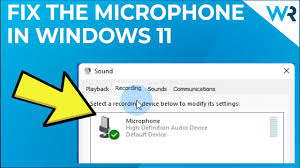
If you get no sound, open the Windows “Recording Devices” list, right-click WO Mic Device, and choose Set as Default Device.
Using Your Phone as a Microphone on Mac
Mac users have a different setup. WO Mic is not fully supported for iPhone + Mac together. Instead, the easiest and most reliable app is Microphone Live.
Microphone Live is a simple iOS app that lets your iPhone act as a microphone for your Mac using a USB cable.
Why Microphone Live Works Well:
- Very low latency
- No Wi-Fi noise or delay
- Stable USB audio transfer
- Works with all Mac apps
Steps to Connect iPhone as Microphone on Mac
Follow these steps:
- Download Microphone Live from the App Store on your iPhone.
- Connect your iPhone to your Mac using a USB or USB-C cable.
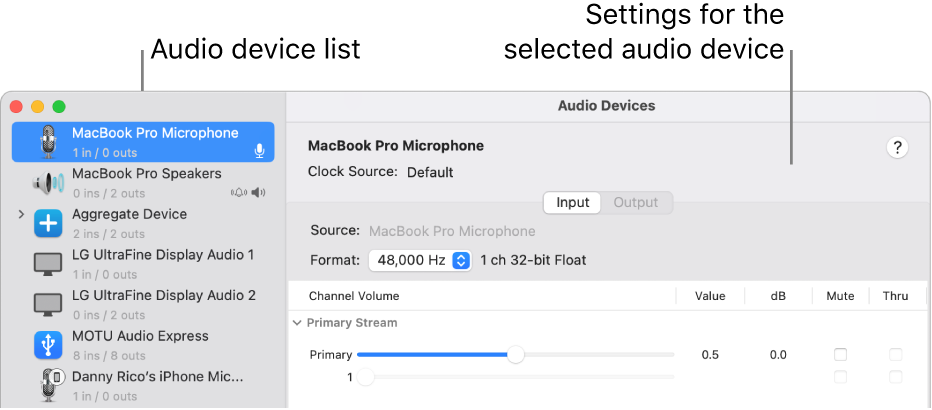
- On your Mac, open Audio MIDI Setup (search using Spotlight).
- Find your iPhone in the left panel.
- Enable it under device options.
- Go to System Settings → Sound → Input.
- Select your iPhone as the Audio Input device.
- Open Microphone Live on iPhone and tap the Power button.
Your iPhone now works as a microphone on your Mac.
Fixing Output Issues on Mac
Some users face a common issue:
The Mac doesn’t receive audio from iPhone.
Fix:
On Microphone Live → Tap No Output → Select Dock Connector.
This ensures the iPhone sends sound through the USB cable to the Mac.
Using Your Phone as a Microphone for Daily Needs
Using your phone as a microphone is helpful in many situations:
1. Online Meetings
Works perfectly with Zoom, Teams, Google Meet.
2. Gaming
Great for Discord chat and in-game voice.
3. Live Streaming
Works with OBS, Twitch Studio, YouTube Live.
4. Recording Podcasts or Voice-overs
Phones have excellent audio clarity and noise reduction.
5. Classroom Presentations
Students can connect phones to laptops for clear audio.
To disconnect, simply tap Stop in WO Mic or Microphone Live.

The End Note
Using your phone as a microphone is one of the most cost-effective and smart ways to get professional-level audio without buying new equipment. Both Android and iPhone users can easily connect through Wi-Fi, USB, Bluetooth, or direct connection. Apps like WO Mic for Windows and Microphone Live for Mac offer smooth and reliable performance.
Whether you’re gaming, recording, attending meetings, or streaming—your smartphone can deliver clear audio at no cost. Save money, reduce noise, and use your phone as a powerful microphone in 2025.