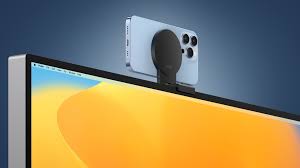
Many people struggle with blurry or low-quality laptop webcams during online meetings, classes, or streaming sessions. If you own an iPhone, you already have one of the best cameras available in your pocket. Using your iPhone as a webcam for Windows can dramatically improve video quality, producing sharper, clearer, and more professional-looking footage.
Unlike standard laptop webcams, iPhones offer natural colors, better focus, and high-resolution video. This makes it ideal for remote work, online teaching, content creation, or live streaming. You don’t need to buy an expensive DSLR webcam setup; with just a few apps and a proper connection, your iPhone can serve as a powerful webcam.
Windows users, however, don’t have native support like macOS users with Apple’s Continuity Camera. Instead, you can rely on third-party apps like Iriun, Camo, Riverside, and EpocCam. These apps are easy to set up and compatible with most Windows versions, giving you flexibility and advanced features depending on your needs.
Why Use iPhone as Webcam on Windows?
The iPhone camera offers high-definition video, advanced sensors, and better low-light performance compared to most built-in laptop webcams. Professional-looking video is important for creating a good impression during meetings, presentations, or content creation.
Other advantages include:
- Cost-effective: No need for expensive webcams.
- Portability: You can use the same device anywhere.
- Advanced controls: Apps like Camo allow adjusting focus, brightness, zoom, and portrait effects.
- Streaming-ready: Ideal for YouTube, Twitch, and Facebook Live without additional hardware.
By leveraging these apps, Windows users can finally unlock the potential of their iPhone camera for professional-quality video at home or in the office.

Step 1: Using Iriun to Connect iPhone as Webcam
Iriun is a popular free app that allows your iPhone to act as a webcam for Windows PCs. It supports both Wi-Fi and USB connections, giving flexibility based on your setup.
Steps to Use Iriun:
- Visit iriun.com on your Windows computer.
- Download and install Iriun Webcam for Windows.
- Open the App Store on your iPhone and install Iriun Webcam.
- Connect your iPhone and computer to the same Wi-Fi network.
- Launch the app on both devices.
- Wait a few seconds for automatic connection.
Once connected, your iPhone camera feed will appear as a webcam on Windows. For better stability, you can also connect via a USB cable, which reduces lag and keeps your phone charged during long sessions.
Tips to Improve Iriun Video Quality:
- Mount your iPhone on a stand or tripod to keep it stable.
- Ensure your room has adequate lighting to reduce grainy video.
- Close other camera apps running in the background to avoid conflicts.
Iriun supports up to 1080p HD video in paid versions, while the free version is sufficient for casual meetings and classes. It’s a straightforward and free solution for most users.

Step 2: Using Camo for High-Quality Video
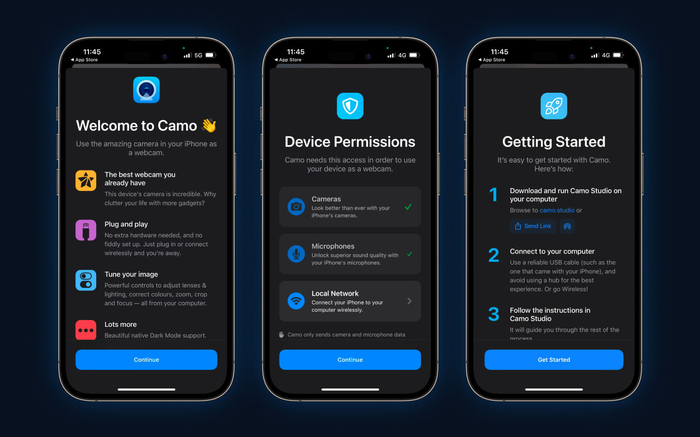
If you want advanced controls and professional features, Camo is an excellent choice. Unlike Iriun, Camo allows you to adjust exposure, zoom, focus, and lens switching, giving you full creative control.
Steps to Use Camo:
- Install Camo Studio on your Windows PC.
- Install the Camo app on your iPhone from the App Store.
- Connect both apps via Wi-Fi or USB.
- Open your video conferencing software (Zoom, Microsoft Teams, Google Meet).
- Select Camo as the video source.
Camo supports multiple apps simultaneously and offers 4K resolution, portrait mode, and various video enhancements in its paid version. This makes it ideal for content creators, live streamers, and professionals seeking superior video quality.
Additional Tips for Using Camo:
- Adjust the lighting and background to match your video style.
- Use the built-in image filters to enhance clarity and color.
- Regularly update Camo Studio for new features and bug fixes.
Camo’s versatility allows using the iPhone camera not only for video calls but also for recording professional-grade content directly on Windows.
Step 3: Using Riverside for Streaming and Recording
Riverside is another premium option designed for content creators and streamers. It supports up to 4K video recording, noise reduction, and multi-camera setups.
Steps to Use Riverside:
- Connect your iPhone to your Windows PC using Iriun or Camo.
- Open Riverside Studio on your desktop.
- Select your iPhone camera and microphone as input devices.
- Start your meeting, recording session, or live stream.
Riverside also allows direct streaming to YouTube, Facebook, or Twitch, making it ideal for professional streaming or podcasting. Its multi-camera support helps in producing more dynamic videos with multiple angles.
Tips for Riverside Users:
- Use a stable Wi-Fi or wired connection to avoid interruptions.
- Mount the iPhone at eye level for better framing.
- Test audio and video settings before going live.
Riverside is perfect for those who require high-quality output for professional purposes, such as interviews, webinars, or online workshops.

Step 4: General Tips to Improve Webcam Experience
Regardless of the app you choose, following these best practices ensures professional-looking video:
- Stable Mount: Use a tripod or phone stand to avoid shaky footage.
- Lighting: Place a soft light in front of you for even illumination.
- Background: Keep a clean, uncluttered background for focus.
- Phone Battery: Connect via USB if using high-resolution video for long sessions.
- Audio Quality: Consider using an external microphone for clearer sound.
A combination of proper setup, stable connection, and quality software ensures your iPhone webcam looks better than most standalone webcams.

The End Note
Using your iPhone camera as a webcam on Windows is now easier than ever. Apps like Iriun, Camo, and Riverside make it simple to connect your iPhone, improve video quality, and add advanced features for streaming and professional calls.
With proper setup, good lighting, and a stable mount, your iPhone can outperform most standard webcams. This guide ensures anyone—from students and remote workers to content creators—can leverage their iPhone for high-quality video on Windows.
Whether it’s for meetings, streaming, or recording, your iPhone webcam will provide clear, professional, and eye-catching video output every time.