Learning how to use Gemini AI for document translation can dramatically improve your workflow—whether you are a student, professional, content creator, or business owner. Google’s Gemini ecosystem is becoming a powerful productivity tool with deeper integration into Google Docs, Sheets, and Workspace apps. Document translation has become more accurate, faster, and much easier to manage.
Gemini AI is especially helpful when dealing with multilingual projects such as international reports, academic papers, legal forms, or business proposals. Instead of relying on multiple tools or manual translation, Gemini streamlines the process by giving you quick suggestions, rephrased versions, and tone-based rewrites—all within Google Docs.
This guide breaks down everything you need to know: from using the built-in translator to combining Gemini with advanced AI tools for maximum accuracy. You will also learn best practices, security tips, and formatting guidelines for professional-level translations.
Understanding Gemini AI Inside Google Docs
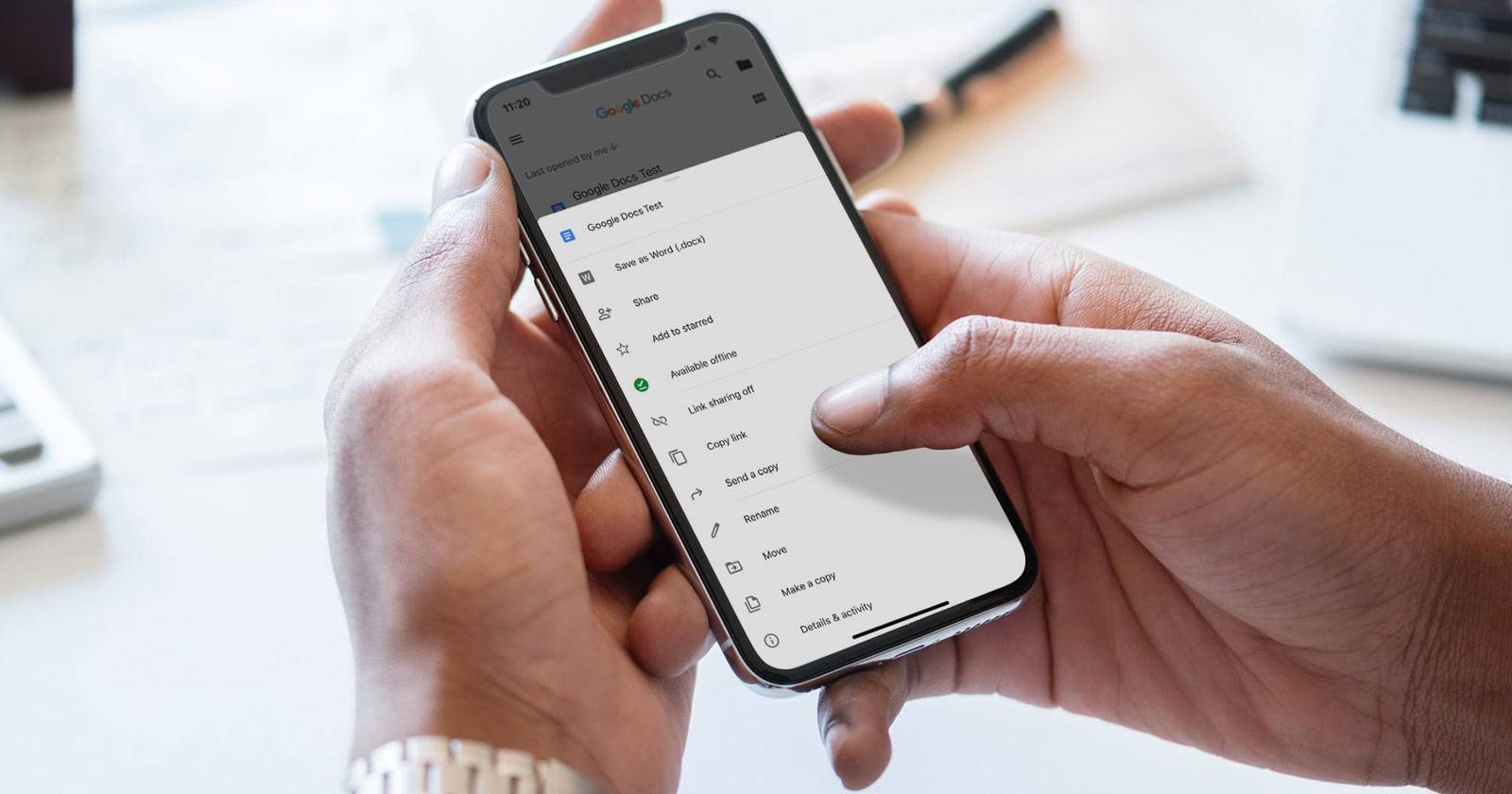
Google has integrated Gemini AI directly into Google Workspace under the Google One AI Premium plan. When you open a document in Google Docs, you will see a floating pen icon with a plus symbol—this is the Gemini assistant panel. It provides rewriting, summarizing, and content-generation features that boost productivity.
When you highlight a paragraph, Gemini shows contextual options such as Summarize, Rephrase, Expand, Shorten, Change tone, or Rewrite with clarity. These tools are valuable for cleaning up long documents, converting academic text into simpler language, or polishing translated sections.
Gemini never replaces the original text unless you choose “Insert” or “Replace.” This ensures you have full control over what goes inside your document. You can generate multiple variations and select the one that fits your meaning, context, and tone.
How to Use Gemini AI for Document Translation Inside Google Docs
There are two practical methods to translate documents using Gemini and Google Docs. The first is the built-in translator, and the second is using Gemini-powered refinement after translation.
1. Using Google Docs Built-In Translation Tool
Google Docs has a built-in translation feature that works well for simple files such as short essays, letters, or non-technical content. Follow these steps:
- Open your document in Google Docs.
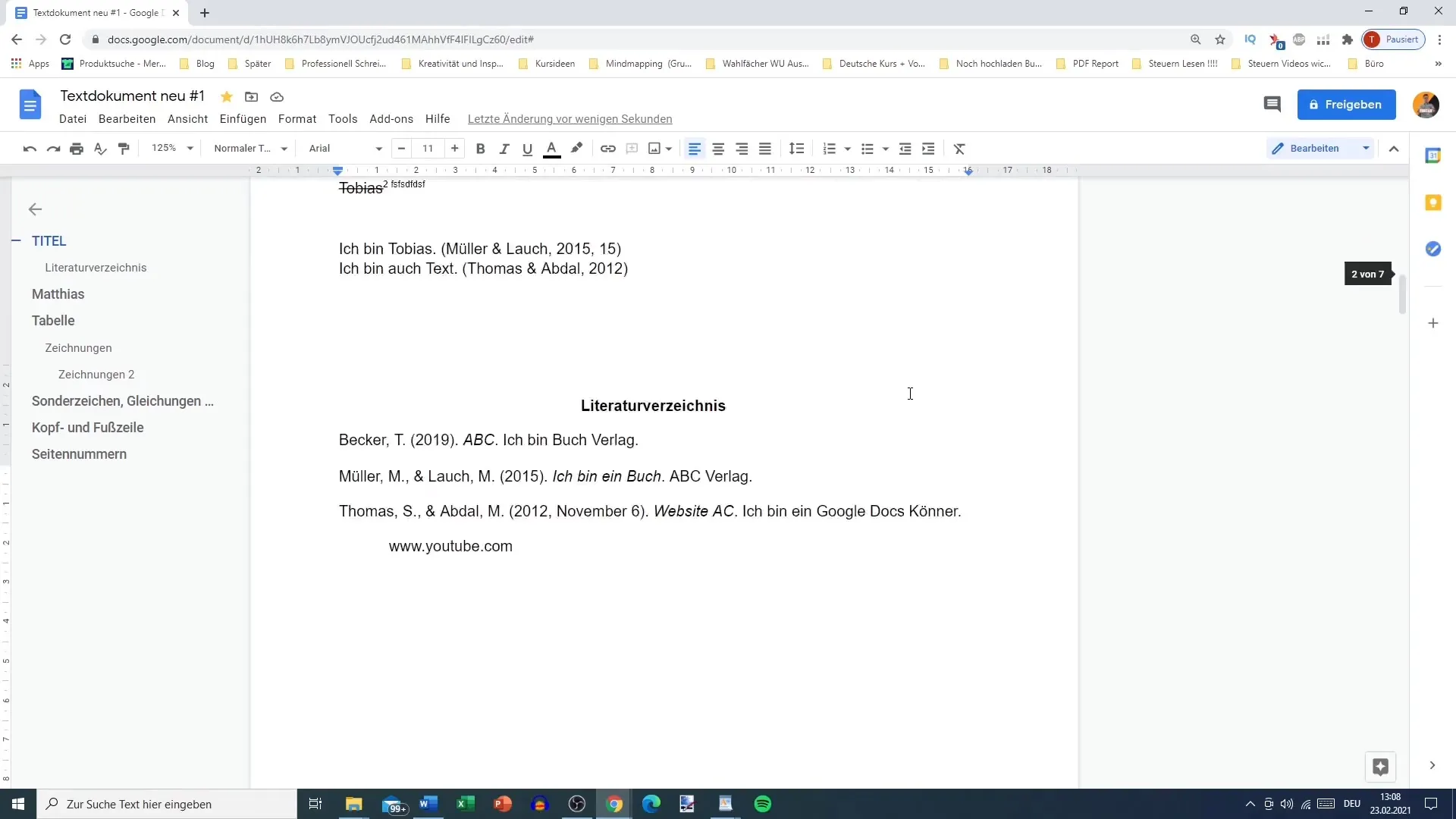
- Go to the Tools menu at the top.
- Click Translate document.
- Choose your target language.
- Rename the translated version if required.
- Click Translate to generate a new file.
This instantly creates a new document with the translated content. It is extremely fast and convenient for day-to-day translation.
However, the built-in translator may struggle with technical reports, slang, idioms, industry-specific terminology, and complex formatting. It’s best suited for general written content, school assignments, or basic business communication.
2. Refining Translated Text Using Gemini AI
After using Google Docs’ translation, highlight any translated section and activate the Gemini panel. Use options like:
- Polish text
- Improve accuracy
- Rewrite for clarity
- Adjust tone (formal, friendly, neutral)
- Rewrite in native-speaker style
This step ensures your translated document sounds natural and maintains flow, grammar, and consistency. Gemini can refine entire paragraphs without altering their core meaning.
Using Advanced AI Translation Tools Together With Gemini AI
If you need higher accuracy—especially for professional or technical documents—you must combine Gemini with advanced translation engines. Tools like Tomedes AI Translator, DeepL, or Google Cloud Translation API provide deeper linguistic mapping and improved grammar.
Why Combine Gemini with AI Translators?
Because Gemini alone is not designed for full, context-rich translation. It is excellent at rewriting, refining, editing, and summarizing. But tools like Tomedes or DeepL are better at:
- Handling 200+ languages
- Maintaining original formatting
- Translating legal, financial, or scientific terms
- Preserving sentence order
- Providing near human-quality output
Once you translate using a dedicated translator, paste the result into Google Docs and use Gemini to refine tone, structure, readability, and accuracy.
How to Use Tomedes AI + Gemini for Best Results
- Upload your document to the Tomedes AI Translator.
- Choose your translation languages.
- Download the AI-translated version.
- Open it in Google Docs.
- Use Gemini AI to refine, shorten, expand, or reorganize text.
This combination provides near professional-level results without hiring a human translator.
Best Practices for Accurate Document Translation with Gemini AI
Using Gemini AI effectively requires following certain principles. Translation is more than replacing words—it includes preserving tone, cultural meaning, and formatting.
1. Prepare the Document Before Translation
Clean your document to ensure the best translation:
- Remove unnecessary phrases
- Break long paragraphs into shorter ones
- Ensure proper punctuation
- Avoid using slang or local idioms
- Check grammar before translation
Clean text reduces errors and improves translation accuracy.
2. Keep Sentences Short
AI translators struggle with long, complex sentences. The shorter your sentences, the better the result.
Example:
❌ “Because the project deadline was extended due to unforeseen circumstances beyond our control, we decided to restructure the team for better result optimization.”
✔️ “The project deadline was extended. Therefore, we restructured the team to improve results.”
3. Maintain Formatting Manually
Translation can disrupt:
- Headings
- Bullets
- Numbering
- Tables
- Charts
Review formatting after translation to ensure professionalism.
How to Translate Documents Safely and Securely Using Gemini AI
Not all documents are safe to upload to online translators. You should always protect sensitive content, especially if it contains personal, legal, corporate, or financial information.
1. Avoid Uploading Sensitive Documents to Third-Party Tools
Do NOT upload documents that include:
- Passport numbers
- Medical reports
- Legal contracts
- Banking details
- Confidential business information
Instead, use offline translators, encrypted Workspace tools, or redact sensitive sections before uploading.
2. Use Google Workspace Enterprise for Maximum Security
If security is your top priority, use:
- Google Workspace Enterprise
- Encrypted Google Drive storage
- Restricted sharing settings
- Gemini AI inside Docs only (without external tools)
Google encrypts data in transit and at rest, making it safer for confidential translation.
3. Always Manually Review AI Output
AI can misunderstand:
- Cultural expressions
- Technical vocabulary
- Deep context
- Legal interpretations
A human review is always necessary, especially for documents that will be published or used professionally.
Strategies to Improve Translation Accuracy with Gemini AI
Gemini AI can help you make translations more natural and contextually relevant. Here are additional strategies:
1. Use Glossaries for Consistent Terminology
If your document includes repeated technical terms—like medical, engineering, or legal phrases—create a glossary. Apply the same English-to-target-language replacements consistently before generating translation with Gemini.
2. Use Tone Adjustments
Gemini supports tone refinements like:
- Formal
- Professional
- Casual
- Creative
- Simple
- Academic
Choose the tone that matches your document type.
3. Ask Gemini to Improve Flow and Coherence
After translating, use prompts like:
- “Improve readability.”
- “Make this sound like native speaker English.”
- “Fix tone inconsistencies.”
- “Rewrite without changing meaning.”
This gives you a polished, clean final draft.
Why Gemini AI Is Helpful for Document Translation
Gemini AI enhances Google Docs in several ways:
- Speeds up cross-language communication
- Helps rewrite and summarize translated content
- Improves clarity and professionalism
- Works seamlessly with Google Workspace apps
- Allows real-time editing without switching tools
- Reduces dependency on paid translators
For multilingual professionals, students, researchers, and businesses, Gemini can reduce hours of work into minutes.
The End Note
Knowing how to use Gemini AI for document translation empowers you to handle multilingual tasks with ease. Whether you are translating simple documents or working on professional reports, Gemini provides helpful rewriting, summarization, and editing assistance.
For the best accuracy, combine Gemini with advanced translation tools like Tomedes or DeepL, then refine the output inside Google Docs. Always review your text for formatting, tone, and terminology accuracy.
With smart usage, Gemini AI saves time, improves productivity, and makes document translation simpler, faster, and more reliable for users worldwide.