

Apple users often face storage limitations with iCloud Photos, as the free plan only offers 5GB of storage. For photography enthusiasts or users with many images, this space fills up quickly. On the other hand, Google Photos provides 15GB of free storage, and it works across iOS, Android, and Windows devices.
Syncing iCloud Photos with Google Photos helps you secure, organize, and access images easily. Whether you want a backup or plan to free up iCloud space, moving photos to Google Photos is a smart choice. You can choose from multiple methods depending on your preferences, technical knowledge, and speed requirements.
This guide covers all possible ways to sync iCloud Photos with Google Photos, including simple manual methods, efficient third-party tools, and automatic cloud syncing. You’ll also learn how to transfer photos back from Google Photos to iCloud if needed.
Why Sync iCloud Photos with Google Photos?
Many Apple users run out of iCloud storage quickly due to photos, videos, and app backups. Syncing photos with Google Photos offers several benefits:
- More Storage Space: Google Photos offers 15GB free storage per account, enough for thousands of images.
- Cross-Platform Access: Unlike iCloud, which is mostly Apple-centric, Google Photos works on Android, iOS, and desktop devices.
- Better Backup and Safety: Keeping your photos in two different cloud services reduces the risk of losing important memories.
- Organizational Tools: Google Photos provides albums, smart search, AI tagging, and sharing options.
Syncing also allows you to manage and organize large photo libraries more effectively, making it easier to locate images, create albums, or share them with friends and family.

Methods to Sync iCloud Photos with Google Photos
There are several ways to move your photos from iCloud to Google Photos. Depending on your preference, you can choose manual, semi-automatic, or fully automatic methods.
1. Normal Methods
Way 1: Use Backup & Sync on iPhone
This method is simple and works directly on your iPhone.
Steps:
- Install Google Photos from the App Store.
- Sign in with your Google account.
- Go to Profile > Photos Settings.
- Turn on Back up & sync.
This automatically uploads your iPhone photos, including those from iCloud, to Google Photos. You can also choose to sync videos, adjust upload quality, and decide whether to use cellular data.
Way 2: Apple Data and Privacy Transfer
Apple provides an official data transfer option for moving photos to Google Photos.
Steps:
- Visit Apple’s Data and Privacy page.
- Sign in using your Apple credentials.
- Click Request to transfer a copy of your data.
- Select Google Photos and choose the albums or photos you want to transfer.
- Confirm the request.
The transfer usually takes 3–7 days. Note that smart albums, favorites, or RAW images may not transfer completely. This method is best for occasional users or smaller photo libraries.

2. Efficient Method Using MultCloud
For users with large libraries or frequent syncing needs, MultCloud is an ideal solution. It is a cloud-to-cloud service that works with Google Photos, iCloud Photos, Dropbox, OneDrive, and more.
Advantages of MultCloud:
- Direct Sync: No need to download or upload files manually.
- Multiple Sync Modes: Choose Move, Update, Real-Time sync, and more.
- Custom Sync: Sync full folders or selected photos.
- Scheduled Tasks: Automate daily, weekly, or monthly sync.
Steps to Use MultCloud:
- Create a MultCloud account using Google or Facebook.
- Add both Google Photos and iCloud Photos accounts to MultCloud.
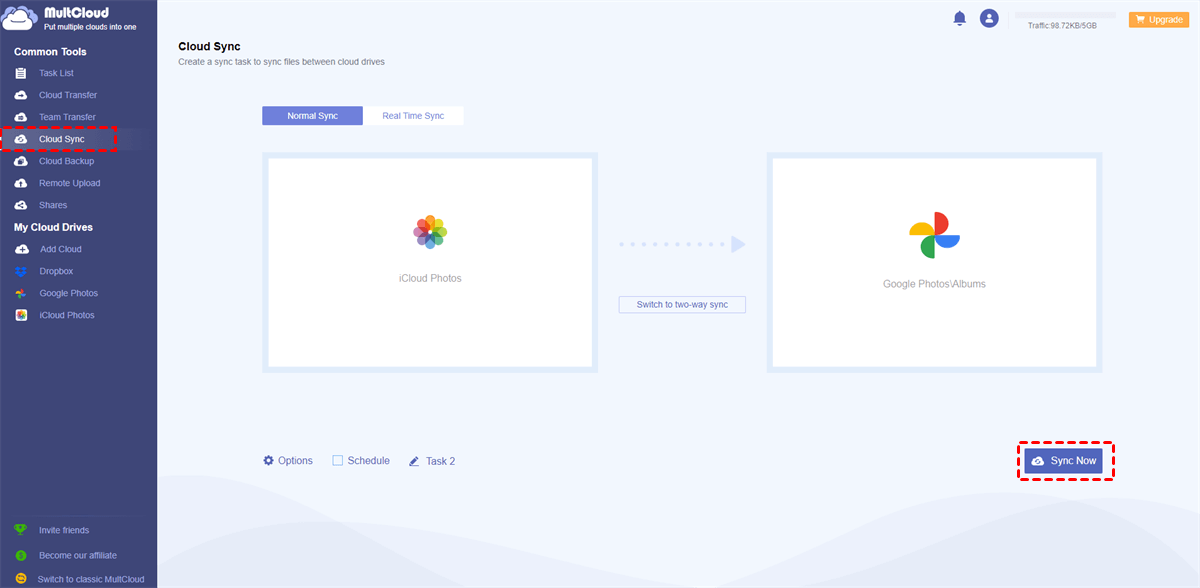
- Click Cloud Sync, choose source and destination folders.
- Click Sync Now to start automatic transfer.
MultCloud’s real-time syncing is much faster than manual methods. It’s perfect for users who frequently add photos to iCloud and want them automatically available in Google Photos.
3. Sync Google Photos to iCloud
Sometimes, you may want to move photos from Google Photos back to iCloud. This is useful when switching devices or consolidating storage.
Option 1: MultCloud Cloud Sync
- Add Google Photos and iCloud accounts to MultCloud.
- Use Cloud Sync to transfer photos directly.
- Set schedules and filters to automate syncing.
Option 2: Manual Transfer on Computer
- Use Google Takeout to export your Google Photos library.
- Download photos to your computer.
- Upload them to iCloud using the iCloud desktop app.
Option 3: Mobile Phone Sync
- iPhone: Save photos from Google Photos to your device, then enable iCloud Photos.
- Android: Log in to iCloud.com and upload photos manually.
Manual methods are slower and depend on internet speed and storage availability, but they work if you don’t want to use third-party apps.
Tips for a Smooth Sync
- Check Storage: Make sure your Google Photos account has enough storage before transferring.
- Use Wi-Fi: Large libraries can consume cellular data, so prefer Wi-Fi for faster and cheaper uploads.
- Organize Before Transfer: Rename folders or organize albums in iCloud to simplify sync.
- Schedule Syncs: If using MultCloud, schedule daily or weekly sync for automatic updates.
- Verify Transfer: After syncing, ensure all photos have been moved correctly, especially if smart albums or RAW files are involved.
Advantages of Using MultCloud
MultCloud is ideal for regular users or professionals managing multiple accounts.
- Efficiency: No need to download/upload manually.
- Automation: Schedule tasks for unattended sync.
- Selective Sync: Sync specific folders or albums.
- Cross-Cloud Support: Works with multiple cloud providers like Dropbox, OneDrive, and Box.
It’s especially helpful for photographers, businesses, and families who want their photos safely mirrored across different platforms.
Final Words
Syncing iCloud Photos with Google Photos is essential for Apple users who need more storage, better backup, and cross-platform access. For casual users, Backup & Sync or Apple Data Transfer is sufficient. For advanced users or frequent transfers, MultCloud provides automatic, real-time, and selective syncing.
Transferring photos back from Google Photos to iCloud is also easy using MultCloud, manual uploads, or mobile sync. The key is choosing the right method based on library size, internet speed, and frequency of syncing.
With proper syncing, your photos are safe, well-organized, and accessible on all devices. Whether it’s for personal memories or professional work, syncing iCloud with Google Photos ensures peace of mind and convenience.