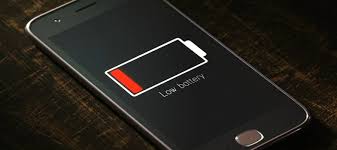
Android smartphones have become more powerful than ever, but battery drain remains a common problem. Many apps silently run in the background, consume power, use the internet, and increase CPU usage. Even when the screen is off, some apps continue syncing data, sending notifications, or refreshing content — which leads to rapid battery loss.
If your phone drains too fast, freezes, or heats up, background apps are usually the main cause. The good news? You can completely control which apps drain battery and stop them instantly. With proper settings and smart adjustments, your battery life can significantly improve without sacrificing performance.
This complete guide explains every method to stop apps from draining your Android battery — using system tools, settings, optimization tips, and hidden tricks that most people don’t know.
Identify Apps That Drain Battery
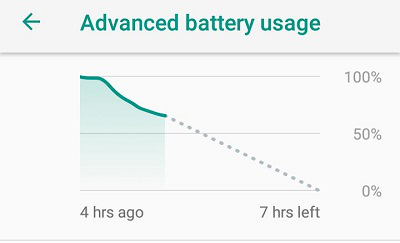
The first and most important step is identifying which apps are consuming the most power. Android provides built-in monitoring tools to help you find these apps instantly.
How to Check Battery Usage
- Open Settings
- Tap Battery
- Select Battery Usage
- View apps listed by power consumption
This page shows you exactly which apps drain the most battery. The apps that appear at the top — such as Facebook, Instagram, Snapchat, and YouTube — usually consume more power due to background processes.
Why Some Apps Drain More Battery
- Social media apps refresh data frequently
- Games require GPU + CPU power
- Location-based apps run GPS continuously
- Messaging apps constantly sync messages
- Browsers keep multiple tabs active
Identifying power-hungry apps helps you decide whether to restrict them, force-stop them, or uninstall them completely.
Use Android’s Built-In Battery Optimization
Android includes several built-in features to reduce battery drain automatically. These tools intelligently manage background apps, limit unnecessary processes, and improve device performance without user intervention.
1. Turn On Adaptive Battery
Adaptive Battery uses AI to learn how you use apps. It:
- Limits apps you rarely open
- Stops background refresh
- Prioritizes your frequently used apps
- Saves battery during idle time
How to Enable:
Settings → Battery → Adaptive Preferences → Adaptive Battery
2. Restrict Background Usage
Some apps don’t require background data. Completely restricting background activity prevents them from running silently.
How to Restrict:
Settings → Apps → Select App → Battery → Restricted
3. Use Battery Saver Mode
Battery Saver decreases screen brightness, stops background syncing, and reduces CPU performance — perfect when your battery is low.
Enable from:
Quick Settings → Battery Saver
This instantly reduces battery consumption by nearly 20–30%.
Manage Apps to Prevent Battery Drain
Managing apps effectively is key to stopping battery drain. Some apps constantly restart themselves even after closing. You can prevent this with the following methods:
1. Force Stop Power-Hungry Apps
Force stop shuts down the app completely until you open it again.
Go to: Settings → Apps → App Info → Force Stop
2. Uninstall or Disable Unused Apps
Apps you do not use still consume storage, RAM, and battery.
- Uninstall useless apps
- Disable preinstalled bloatware
3. Keep Apps Updated
Old app versions may contain bugs that cause overheating or excessive battery drain. Updating fixes these bugs and improves battery life.
4. Clear Cache Regularly
Heavy cache slows your device and increases battery usage.
Go to:
Settings → Apps → Select App → Storage → Clear Cache

Turn Off Unnecessary Services
Certain Android features drain battery quickly if left enabled. Turning them off when not needed can improve battery life drastically.
1. Turn Off GPS When Not Needed
Location services drain battery the most because GPS constantly tracks your movement. Only keep it on when required.
Go to: Settings → Location → Turn Off
2. Disable Bluetooth & Wi-Fi When Not in Use
When these features are enabled, they constantly search for devices and networks — draining battery silently.
3. Disable Hotspot
Mobile hotspot uses huge battery power as it constantly transmits internet.
4. Turn Off Auto-Sync
Auto-sync updates emails, WhatsApp backups, contacts, and cloud storage continuously.
Go to: Settings → Accounts → Auto Sync → Off
Manage Notifications Smartly
Notifications drain battery because:
- They wake up the screen
- They refresh apps
- They use internet in background
You should only allow notifications for essential apps.
1. Turn Off Unnecessary Notifications
Go to:
Settings → Notifications → App Notifications
Disable useless notification categories.
2. Disable Notification Dots
These dots require background scanning.
3. Restrict Notification Access
Apps with notification access can run processes silently.
Disabling them improves battery and privacy.

Optimize Display Settings
Your display uses the most battery — even more than apps. Changing screen settings can significantly boost battery life.
1. Reduce Screen Brightness
Avoid keeping brightness above 70%.
Use Adaptive Brightness instead.
2. Use Dark Mode
Dark Mode reduces battery consumption up to 30% on AMOLED screens.
3. Reduce Screen Timeout
Keep your screen timeout between 15–30 seconds.
Go to: Settings → Display → Screen Timeout
4. Reduce Refresh Rate
If your phone supports 90Hz/120Hz:
Lowering refresh rate increases battery life dramatically.

Network & Connectivity Optimization
Poor network signals drain battery faster because your phone increases power to find better signal strength.
1. Switch to 4G Instead of 5G (If Not Needed)
5G consumes more power.
Switch to 4G for daily use.
2. Turn On Airplane Mode in Weak Signal
If you’re in a low-signal area, Airplane Mode stops battery wastage.
3. Disable Always-On Mobile Data
Apps keep syncing in the background when mobile data is ON.

Avoid Overheating (Very Important)
Heat is the biggest enemy of battery health. Avoid:
- Using phone while charging
- Gaming for long hours
- Keeping your phone in sunlight
- Charging with non-original chargers
Overheating permanently damages battery capacity and causes faster drain.

Advanced Battery Saving Techniques
1. Use Third-Party Battery Monitoring Apps
Apps like:
- AccuBattery
- Greenify
- Battery Guru
These apps show battery health, background tasks, wake locks, and charging patterns.
2. Disable App Auto-Start
Many apps auto-start even after closing them.
Go to:
Settings → Apps → Auto-Start → Disable unwanted apps
3. Turn Off Vibration
Vibration uses mini motors and drains battery faster than ringtones.
4. Turn Off Haptic Feedback
Keyboard vibration also consumes power unnecessarily
Replace Weak Battery (If Nothing Works)
If your phone battery drains:
- Too quickly
- Even after resetting settings
- Without heavy usage
- And heats without reason
Then your battery itself might be weak.
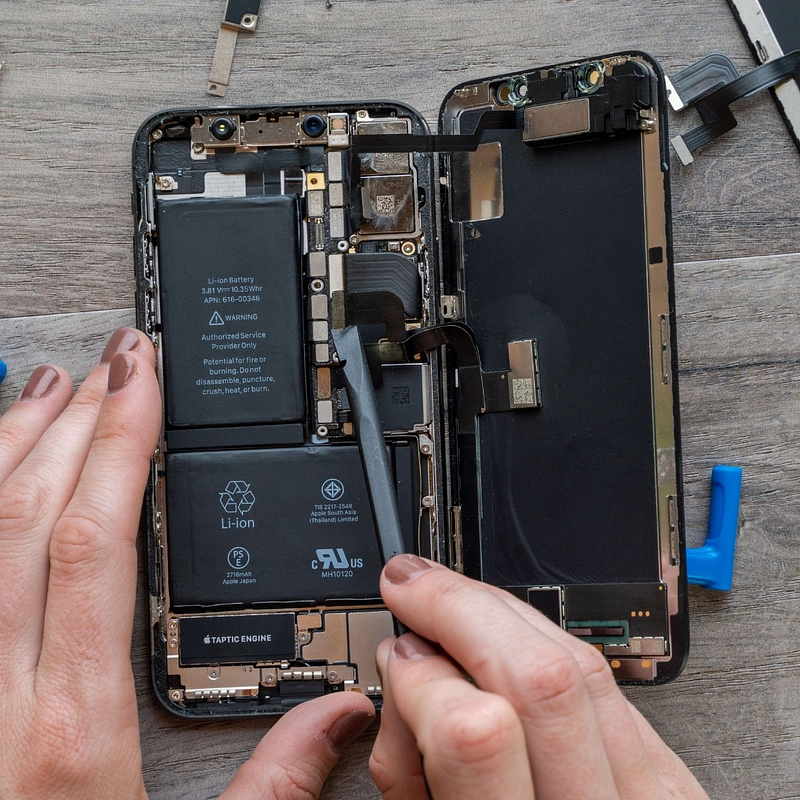
Lithium-ion batteries degrade over time and lose capacity. Replacing the battery can restore original performance.
The End Note
Stopping apps from draining battery on Android is easy once you understand what causes the drain. By identifying heavy apps, restricting background processes, reducing brightness, disabling unnecessary services, and optimizing notifications — you can increase your battery life instantly.
Always update your apps and OS, avoid overheating, and replace old batteries when required. Combining these tips ensures your phone stays fast, cool, and long-lasting every day