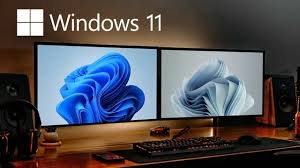
Setting up dual monitors with different wallpapers is an easy yet powerful way to enhance your workspace. Whether you’re a gamer, a creator, or a professional working with multiple windows, having separate wallpapers gives a personalized and organized feel to your setup. Windows 10 and Windows 11 both support this feature natively, and you can customize each monitor with any picture you like.
With the rise of multi-monitor setups, users expect more visual control. From productivity tasks to aesthetic customization, Windows offers simple options to set individual wallpapers on each display. Whether your monitors are the same size or completely different, the steps are nearly identical.
The good news? You don’t need any special software to set up different wallpapers. Windows handles the basics very well. However, if you need advanced options like live wallpapers, slideshows, or separate dynamic backgrounds, third-party apps are available too.
Windows 10 and 11 both allow you to assign specific wallpapers to each monitor using a simple right-click method. This makes it easy to mix and match different themes. For example, you can keep a minimal office-style wallpaper on Monitor 1 while using a nature or gaming background on Monitor 2. This mix adds style and helps you mentally separate tasks.
Some users prefer aesthetic matching wallpapers, such as dual wallpapers that connect across screens. Others want completely different images for a more dynamic feel. Either way, the process remains the same. Windows gives you freedom to personalize your environment according to your needs.
Before you begin, make sure both monitors are connected correctly. Go to Settings → System → Display and ensure Windows is detecting each screen. You can rearrange them by dragging the display boxes. Once you confirm the monitor layout, you’re ready to assign wallpapers individually.
Key Takeaways
- Windows 10 and 11 both support different wallpapers on each monitor.
- You can assign wallpapers by right-clicking images inside the Background menu.
- Third-party apps add features like slideshows and live wallpapers.
- Windows Spotlight does NOT allow different wallpapers for each monitor.
- The process takes less than 2 minutes once you know where the settings are.
How to Set Different Wallpapers Using Windows 10/11 Settings
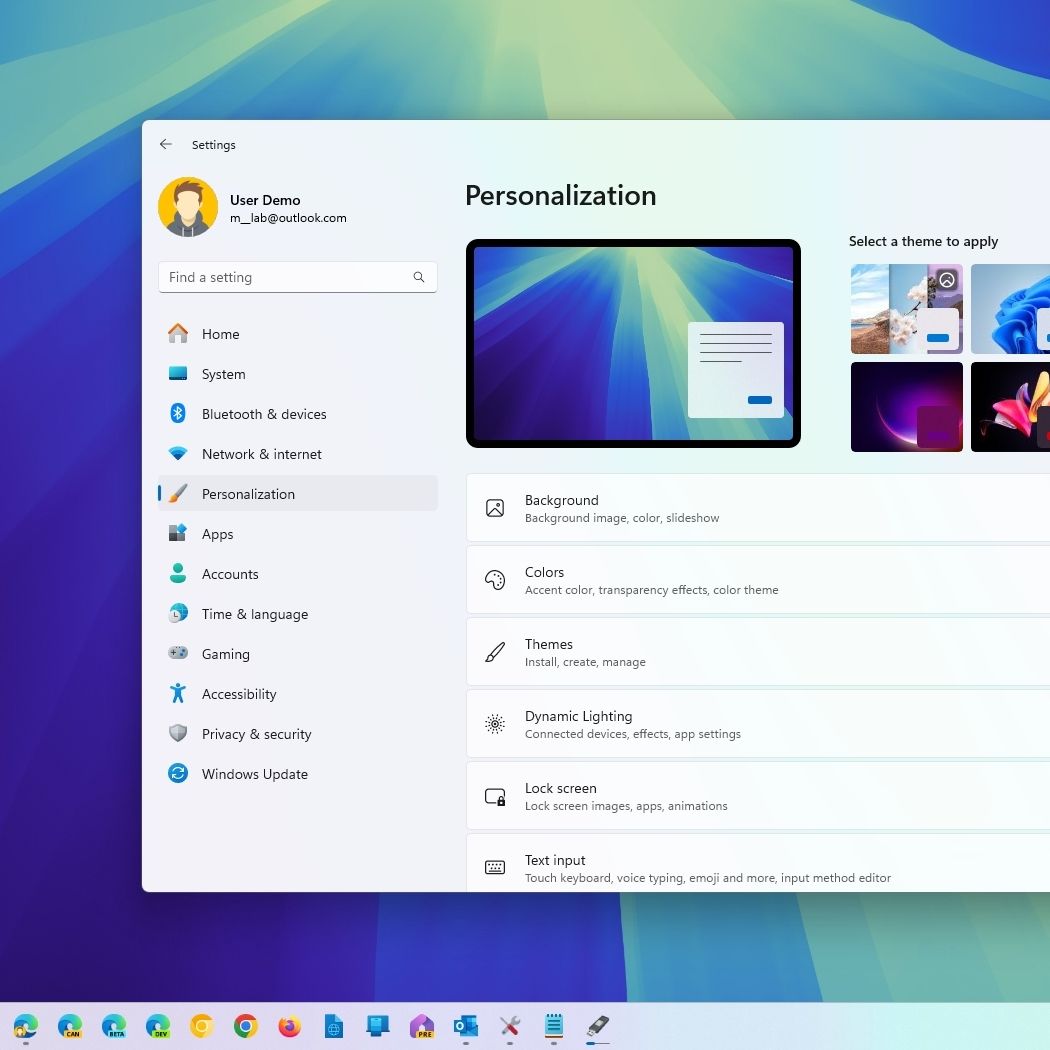
To begin, open the Settings app. The fastest method is pressing Windows + I on your keyboard. You can also search “Settings” in the Start menu or click the gear icon if available. Once the Settings window opens, navigate to Personalization, then choose Background from the left panel.
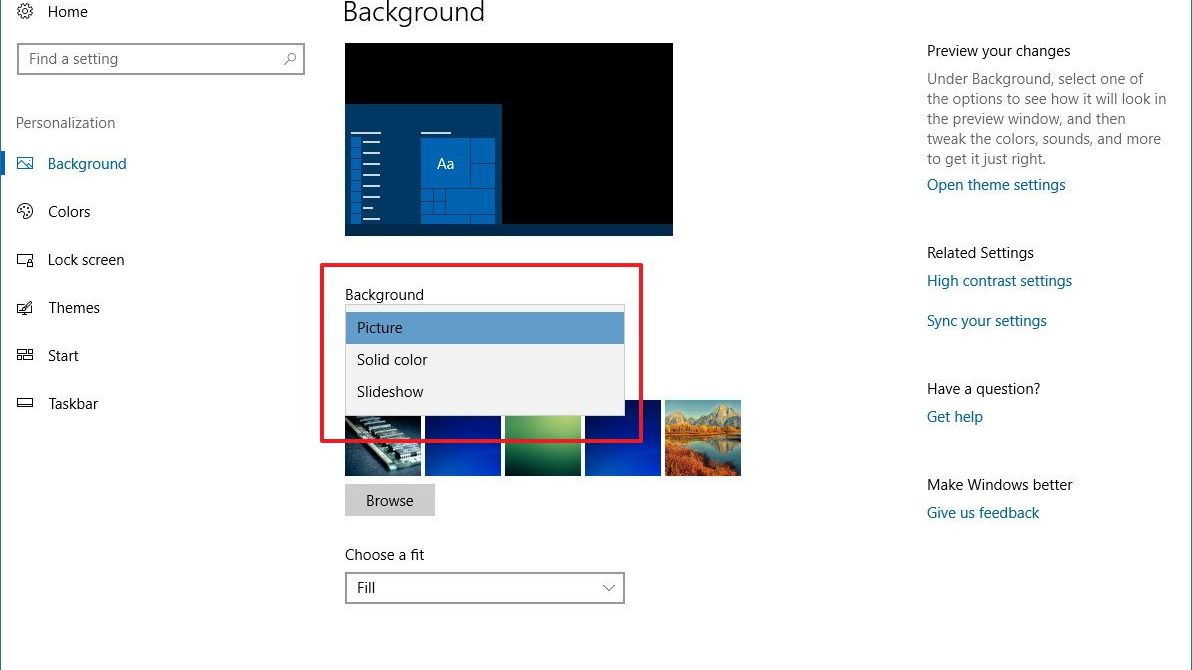
Inside the Background section, you’ll find options to choose your wallpaper mode — Picture, Solid Color, or Slideshow. For dual-monitor wallpapers, select Picture to assign individual images. Windows shows a list of recently used wallpapers above the Browse button. You can click Browse Photos to choose a new image from your device.
After you select an image, it appears under the Recent Images section. Right-click the wallpaper and choose Set for monitor 1 or Set for monitor 2. If you have more than two monitors, you’ll see more assignment options. Repeat the same steps for each screen.
This method works perfectly for static wallpapers like JPG, PNG, or other common formats. If you prefer clean minimal design or nature-themed images, Windows handles them with no issues. You can easily replace wallpapers any time by repeating the same right-click assignment.
You can also change wallpapers by right-clicking anywhere on the desktop and selecting Personalize. This shortcut opens the same Background settings directly. It is a quick way to switch images whenever you want.
While this built-in feature is powerful enough for most users, it does have limits. For example, Windows Spotlight, the feature that shows daily background images, does not support individual wallpapers for each monitor. Spotlight always mirrors the same wallpaper on all screens.
Setting Up Dual Wallpapers in Windows 10
Windows 10 makes customizing wallpapers a simple process. Open the Start Menu, go to Settings, and click Personalization. Inside this page, select Background. You’ll see options to choose a wallpaper or browse new ones. Once images appear in the Recent Images list, right-click the one you want and assign it to a specific monitor.
If you want more wallpapers, click Browse to locate additional images. Windows adds them to your gallery for quick assignment. This is useful when you’re trying multiple combinations to find the perfect look.
Windows 10 fully supports different wallpapers for each display as long as you’re using Picture Mode. It also supports multi-monitor wallpapers that stretch across screens, but each monitor must have the same scaling and resolution for the effect to look clean.


If your monitors have very different resolutions, stretching one wallpaper across both screens might not look ideal. In such cases, using two separate wallpapers is better. You might choose matching color tones, similar themes, or completely different images based on your preference.
Another useful tip is to save your wallpapers in one folder. This makes it easier to reassign or test new looks. Sometimes users download wallpapers from multiple websites and scatter them across folders, making them hard to track. Keeping them in a dedicated folder ensures a smoother experience.
Windows 10 does not support separate slideshows for different monitors, but you can still use a general slideshow for all screens. If you want advanced slideshow features, third-party apps are available (discussed later).
Setting Up Dual Wallpapers in Windows 11
Windows 11 keeps the wallpaper customization process familiar but adds a cleaner, modern interface. First, open Settings, then go to Personalization → Background. Choose Picture from the Background dropdown. Now select or browse for an image.
When your wallpapers appear in the Recent Images section, simply right-click an image and choose Set for monitor 1, monitor 2, or any additional screen. Windows 11 handles dual wallpaper assignments smoothly and quickly.
If you want a more modern look, Windows 11 offers beautiful default wallpapers. You can mix a default wallpaper on one monitor while adding a downloaded wallpaper on another. This combination often looks stylish and balanced.

Windows 11 supports multiple monitor arrangements, and you can drag monitor positions inside the Display section. Make sure the layout matches your physical setup to avoid confusion when assigning wallpapers.
One advantage of Windows 11 is its better handling of scaling across different screen sizes. If one monitor has 1080p and the other is 4K, Windows 11 manages the wallpaper cropping intelligently. However, it’s still best to use separate wallpapers instead of stretching one across both screens, especially for mismatched displays.
A common issue some users face is when wallpapers look zoomed in or cropped oddly. This usually happens due to different resolution ratios. Choosing wallpapers designed for your monitor’s aspect ratio solves the problem instantly.
Advanced Tips for Professional Customization
While Windows provides basic dual-monitor wallpaper functionality, power users often want more control. This is where third-party tools come in. Apps like DisplayFusion, Wallpaper Engine, and Dual Monitor Tools offer additional features.
These apps allow:
- Different slideshows for each monitor
- Dynamic wallpapers
- Time-based wallpaper switching
- Video wallpapers
- Cloud sync options
- Auto-fit wallpapers for ultrawide and rotating monitors
For example, Wallpaper Engine lets you run separate animated wallpapers on each monitor. DisplayFusion offers automation triggers, wallpaper profiles, and deeper control over monitor behavior.
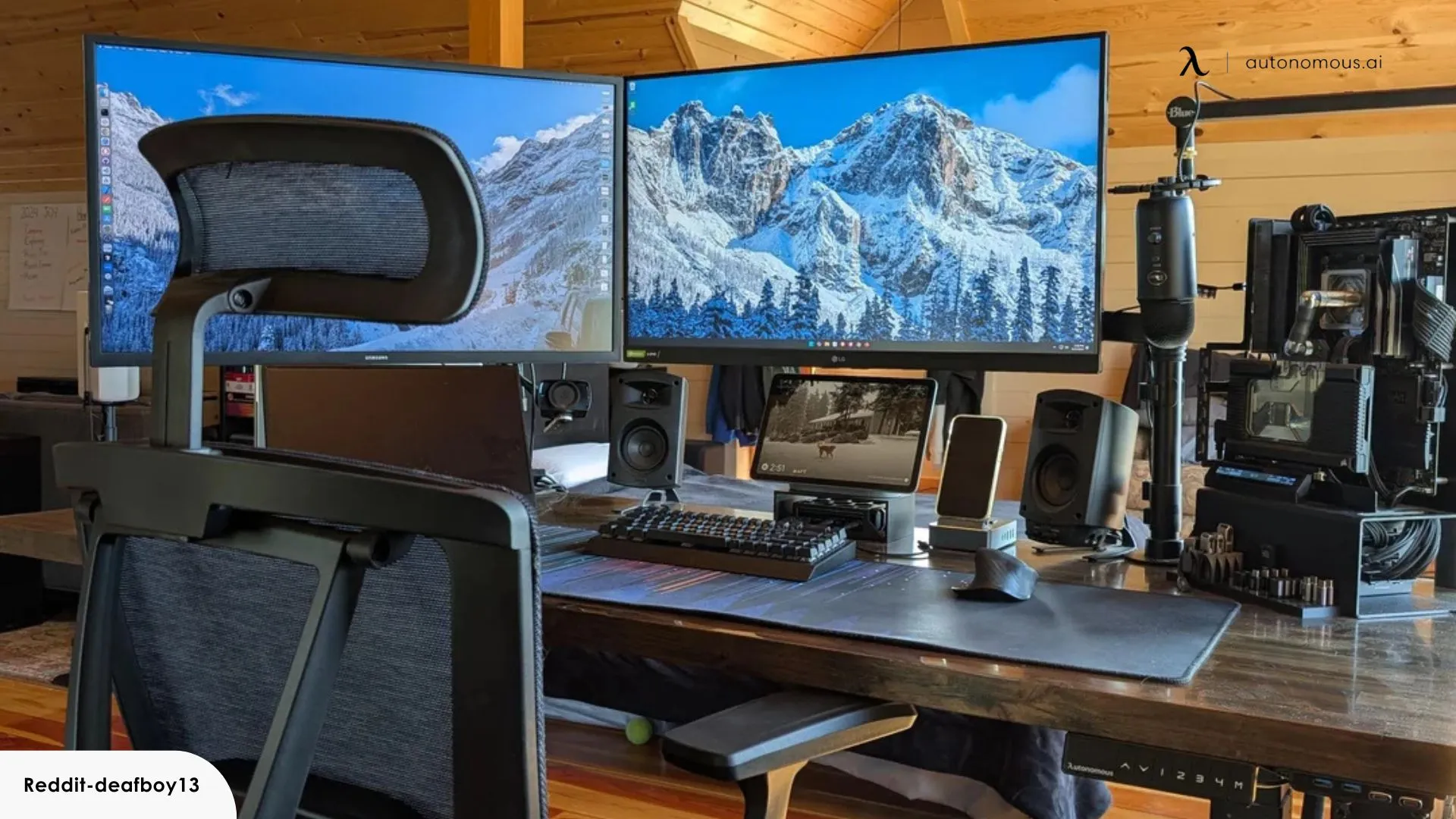
Before using third-party apps, make sure they don’t conflict with Windows settings. Some apps override Windows wallpaper handling entirely, so double-check their settings.
Another tip is to avoid using extremely large wallpaper files. Very high-resolution images (over 8K) can cause unnecessary GPU load or slow transitions, especially on older systems. Stick to wallpapers that match your monitor resolution or slightly above.
You can also create custom wallpapers using Canva or Photoshop. Many users combine minimal designs, gradients, or abstract shapes to create balanced multi-monitor aesthetics. Matching color schemes across screens gives your setup a clean and professional look.
The End Note
Setting up dual monitors with different wallpapers is an easy and effective way to upgrade your desktop experience. Whether you’re using Windows 10 or Windows 11, both systems allow you to personalize each display in just a few steps. With native settings, you can assign unique images to each monitor, experiment with themes, and enjoy a workspace that feels truly your own.
If you need more advanced customization—like animated backgrounds, multiple slideshows, or dynamic images—third-party tools can enhance your setup even further. Just remember that Windows Spotlight doesn’t support independent wallpapers, so stick to static or custom images for dual-monitor setups.
With the right wallpapers, your dual-monitor arrangement becomes more than just functional—it becomes visually inspiring. Follow the steps and tips in this guide, and enjoy a fully personalized, professional-looking multi-screen environment.