
Steam is the most popular gaming platform for PC users, but it has one major downside—storage usage. Games today are massive, updates are frequent, and Steam keeps cached data, shader files, backups, and logs that slowly pile up. If you’re using a low-storage PC or SSD, you may find your drive running out of space quickly. But the good news is that you don’t need to uninstall your favorite games just to reclaim space. Steam has several built-in tools that help optimize your storage.
Many gamers underestimate how much temporary data Steam collects. The download cache alone can grow into gigabytes. Game folders develop duplicate or leftover files. Old backups and screenshots also silently fill up storage. Without proper maintenance, a low-storage PC can start lagging, experience slow loading times, or even fail to install new updates.
This guide will show you practical, safe, and effective ways to optimize Steam storage without deleting your installed games. Each method is beginner-friendly and works on Windows 10, Windows 11, and even Steam Deck. Follow the steps carefully to maximize your available space while keeping your game library intact.
1. Clear Steam Download Cache
Steam stores download cache to speed up patching, verification, and file transfers. While useful, the cache can grow extremely large over time. Clearing it regularly can free several hundred MBs or even multiple GBs—without affecting gameplay, save files, or installed games.
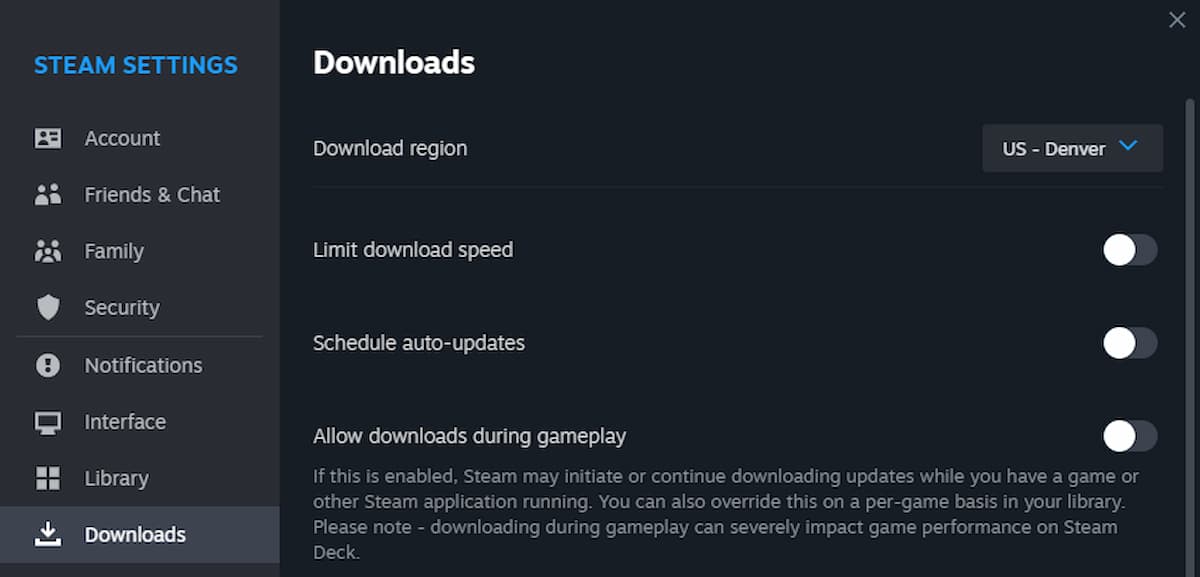
To clear your download cache, open Steam and click on Settings > Downloads > Clear Download Cache. Steam will restart and log you out temporarily. After signing in again, you’ll notice smoother downloads and more free storage.
The benefit of clearing cache is immediate. You remove unnecessary data that Steam no longer needs. It also resolves slow download issues and improves update performance. Many gamers never clear cache at all, which means thousands of files sit unused in the background consuming precious disk space.
In some cases, clearing the cache also fixes corrupted updates or stuck downloads. If Steam is behaving slowly, clearing the cache is one of the first solutions recommended by official support. On low-storage PCs, it should be done at least once or twice a month to maintain efficiency.
Clearing the download cache does not remove your games, installed updates, progress, mods, or Steam Cloud data. It only removes temporary files that Steam automatically recreates when needed. That makes it one of the safest and most effective storage-saving techniques available.
2. Move Games to Another Drive
If you have more than one storage drive—such as a secondary HDD or external SSD—you can move individual Steam games without reinstalling them. This helps free space on your primary drive (usually C:), which is often smaller.
Right-click any game in your Steam Library, choose Properties, go to Local Files, and select Move Install Folder. Choose another drive that has available space. Steam will transfer all game data safely, keeping your settings, saves, and progress intact.
For players with very large games like Call of Duty, ARK, or Red Dead Redemption 2, moving even one or two games can free over 100GB instantly. For low-storage laptops or budget PCs where the SSD is small, this feature is extremely helpful.

Steam Library folders can also be created on external SSDs. This is particularly useful for users who want a cheap storage upgrade without opening their PC. Modern external SSDs are fast enough to load most games smoothly. Just ensure the drive is always plugged in before launching Steam.
If you regularly download new games or install large updates, shifting older titles to a secondary drive prevents storage warnings and keeps your main drive optimized. It also reduces stress on your system SSD, which can performance-degrade when near full capacity.
3. Compress Game Files Using Steam’s Built-In Tool
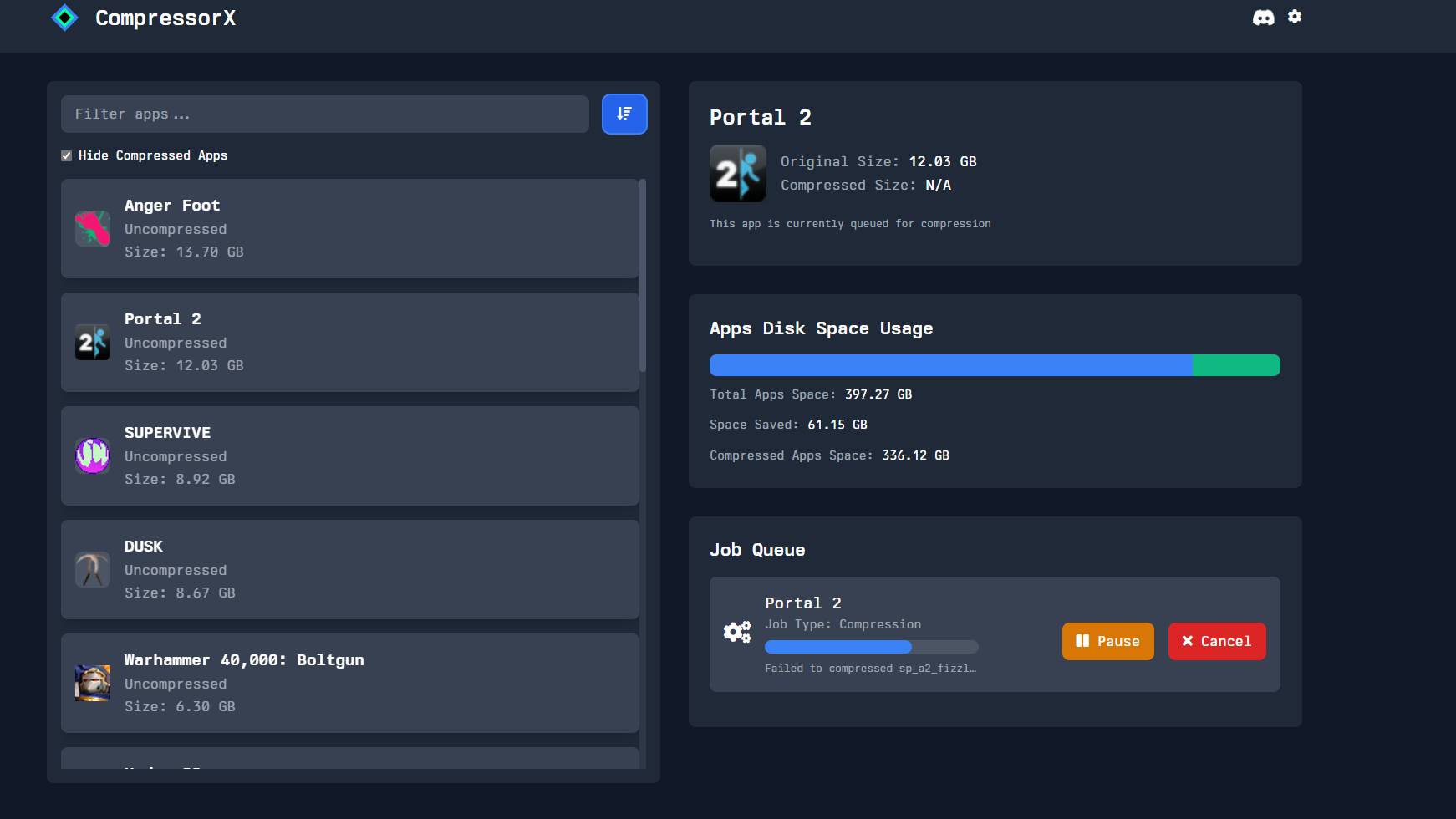
Steam recently introduced a built-in game file compression feature. When enabled, Steam compresses unused or rarely accessed game files. This reduces storage usage while still allowing the game to launch normally.
To compress a game, navigate to Steam > Settings > Downloads > Steam Library Folders. Right-click your game or library folder and select Compress Game Files. The process may take a few minutes depending on game size.
Compressed games typically save 5–20% storage space, which is significant for users with limited disk space. Games above 50GB can reduce to 40GB or less. Since compression happens locally, your game performance stays stable during gameplay.
One important thing to understand is that Steam decompresses files only when needed, such as during updates. This ensures faster performance and minimal slowdowns. The compression feature is especially useful for RPGs, open-world games, and large texture packs.
If you’re running games on a small 128GB or 256GB SSD, compression becomes essential. It allows you to keep more installed games without sacrificing storage or uninstalling older titles.
4. Delete Unnecessary Backup Files
Steam automatically creates backup folders whenever updates or file repairs occur. These backups accumulate over months and years, filling up storage quietly in the background.
To clear these backups, open your Steam installation folder, navigate to Steam > Backups, and delete old backup files. Make sure you only remove files from older versions—not your active game installation.
These backup files often range from 1GB to 10GB per folder. For low-storage PCs, removing outdated backup files can instantly recover large amounts of space. Steam no longer needs these backups unless you manually created them for restoration.
Many gamers are shocked to see how much backup data they have accumulated. Some find over 50GB of unused backups without even realizing it. Regular cleanup ensures maximum efficiency.
5. Manage Steam Cloud Storage
Steam Cloud is helpful because it saves your progress online. However, Steam also stores local copies of cloud data on your drive. Some games, especially RPGs or modded titles, create large save files that quickly consume space.
To manage Steam Cloud storage, go to Settings > Cloud. You can disable cloud sync for specific games or for the entire Steam library. This prevents unnecessary duplication of files on your PC.
Once disabled, Steam will no longer generate large cache copies of your cloud saves. For games with massive save files like Skyrim, Cyberpunk 2077, or Cities: Skylines, this frees up noticeable space.
If you play offline often, consider keeping cloud sync enabled only for essential games. Cloud data is useful, but on low-storage devices, it must be managed carefully.
6. Remove Screenshots, Mods, and UGC Files
User-generated content such as screenshots, workshop mods, and shader caches can grow massively over time. These files can easily consume 5GB–20GB depending on how many games you play.
To clear screenshots, open Steam > View > Screenshots. Select unwanted images and delete them.
For mods, navigate to your Steam game folder and remove unused files or disable workshop items. Each mod can be anywhere from a few MB to multiple GB. Over time, these pile up and slow down your storage.
Shader pre-caching also takes up space. Steam downloads shader data for smoother gameplay. You can disable this feature in Steam > Settings > Shader Pre-Caching, especially if running out of storage.
These steps keep your storage clean, organized, and optimized for performance.
7. Verify Integrity of Game Files
Sometimes duplicate or corrupted files take up additional storage. Steam’s “Verify Integrity” feature analyzes your game files and removes unnecessary or damaged ones.
Right-click your game, choose Properties, go to Local Files, and click Verify Integrity of Game Files.
Steam will check for invalid files and restore only what’s required. This process ensures your game uses the minimum amount of data needed to run properly.
For low-storage PCs, verification prevents the accumulation of corrupted data and eliminates leftover files after updates. It also improves stability and reduces crashes.
Final Words
Optimizing Steam for low-storage PCs is completely possible without uninstalling your games. By clearing cache, compressing files, deleting old backups, and managing mods, you can free up several gigabytes instantly. Moving games to other drives or external SSDs creates even more room on your main storage.
Steam’s new compression tools and built-in storage management features make it easier than ever to maintain a clean, fast, and efficient gaming library. With regular maintenance, even a 128GB PC can run smoothly without storage warnings.
Follow these steps consistently, and enjoy your entire Steam library without deleting any of your favorite titles.