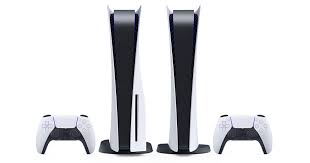
Connecting a PS5 controller via Bluetooth gives you full wireless freedom whether you’re gaming on Android, iOS, Windows, or even a tablet. The DualSense controller is powerful, responsive, and extremely comfortable, making it a top choice for players who want a better gaming experience beyond just the PlayStation 5 console.
Many users think that the DualSense only works with PS5, but this is not true. The controller supports Bluetooth connectivity that allows pairing with a wide range of devices. That means you can use it to play mobile games, emulators, cloud-gaming apps, and PC titles without any cable restrictions.
While the pairing process is very simple, it’s important to follow the steps correctly. If you miss certain steps like entering pairing mode or updating your device software, the controller may fail to connect. This complete guide explains every method clearly so you can enjoy smooth wireless gaming anywhere.
Prepare Your PS5 Controller for Bluetooth Pairing
Before pairing, the DualSense controller must be completely powered off. If it is still connected through a USB cable or linked to your PS5 console, disconnect it immediately. You must start from a clean state to enter proper pairing mode.
To activate pairing mode, press and hold the Create button + PS button at the same time. Hold for 3–5 seconds until the light bar starts blinking rapidly. This flashing light is the indication that the controller is discoverable.
Once the controller enters pairing mode, it is ready for Android, iOS, Windows, or any Bluetooth-supported device. If the blinking stops, simply repeat the button process again to restart pairing mode.

Make sure the device you want to pair has Bluetooth enabled. For mobile phones, Bluetooth is built-in, but many desktop PCs still require an external Bluetooth USB adapter. These adapters are cheap and work smoothly with the DualSense controller.
Lastly, update your controller firmware if you are using PS5. Updated firmware improves connectivity and fixes bugs. Keeping everything updated ensures stable and reliable pairing with all devices.
Connect a PS5 Controller via Bluetooth on Android
Pairing the DualSense controller with Android is one of the easiest methods. Most Android phones support wireless game controllers natively, which means no extra apps are required.
First, swipe down from the top of your Android screen and open Bluetooth settings. Tap “Pair new device” or “Add device” depending on your phone model. Your phone will now start scanning nearby Bluetooth devices.
Now put your PS5 controller in pairing mode (Create + PS buttons). In a few seconds, you will see “DualSense Wireless Controller” appear in the list.

Tap on it to connect instantly. If a confirmation message appears, accept the pairing request. Your Android phone should now successfully connect to the PS5 controller wirelessly.
To ensure smooth performance, your device should be running Android 12 or later. Older software versions often have Bluetooth issues with newer controllers. Always update your device before pairing to enjoy stable gameplay.
Once connected, open any game that supports controllers or launch an emulator. The DualSense will work smoothly without additional setup. Many cloud-gaming apps like Xbox Cloud Gaming, PS Remote Play, and GeForce Now also support DualSense wireless input.
Connect a PS5 Controller via Bluetooth on iOS (iPhone/iPad)
Connecting a PS5 controller to an iPhone or iPad is just as simple. Apple devices support the DualSense controller natively from iOS 14.5 / iPadOS 14.5 and above.
First, swipe down from the top-right corner of the screen to open the Control Center. Make sure Bluetooth is turned on. If it is off, tap the Bluetooth icon to activate it.
Next, press and hold the Create + PS buttons on your controller until the light bar begins blinking. This sign indicates that the controller is ready for pairing.
Now open Settings > Bluetooth on your iPhone or iPad. A list of devices will appear. Select “DualSense Wireless Controller” to begin pairing.

Once the iPhone connects, you can use the controller instantly. Most Apple Arcade games, App Store games, and emulators support the DualSense controller. Popular cloud-gaming platforms like Nvidia GeForce Now and Xbox Game Pass also work great with iOS controllers.
If pairing fails, restart your device or reset Bluetooth settings. Also ensure you are running the required iOS version. Bluetooth stability improves greatly on updated software, so keeping your phone updated is important.
Connect a PS5 Controller via Bluetooth on Windows PC
Windows PCs do not always include built-in Bluetooth. If your PC already has Bluetooth, you can pair the controller directly. If not, you must purchase a Bluetooth USB adapter to enable wireless connectivity.
Insert the Bluetooth adapter into a USB port and wait for your PC to install drivers. After installation, turn on Bluetooth from Settings > Devices > Bluetooth & Devices.
Now put the DualSense controller in pairing mode (press Create + PS buttons until the light blinks). On your PC, click “Add Device”, then select Bluetooth. Choose “Wireless Controller” or “DualSense Wireless Controller” from the list.

Once paired, your controller is ready for gaming. Many PC games automatically detect the DualSense, especially through platforms like Steam, which offers custom button mapping and full controller support.
However, Bluetooth may not support advanced features like adaptive triggers and haptic feedback. These features only work when the controller is connected through USB. But for regular gameplay, Bluetooth is more than sufficient.
If you experience lag or disconnections, use a higher-quality Bluetooth adapter. Cheap adapters sometimes cause unstable performance. Restart your PC or re-enter pairing mode if the connection drops.
Troubleshooting: Fix PS5 Controller Bluetooth Issues
Even though pairing is usually easy, some users face issues such as the controller not appearing, disconnecting randomly, or failing to pair. Here are the best fixes:
1. Restart both devices
This clears temporary glitches and refreshes Bluetooth signals.
2. Reset the DualSense controller
Use a pin to press the small reset button on the back of the controller for 5 seconds.
3. Forget and re-pair the device
Go to Bluetooth settings → Remove controller → Pair again.
4. Keep your device updated
Many compatibility issues come from old software versions.
5. Stay within Bluetooth range (10 meters)
Avoid walls, metal objects, or interference from other wireless devices.
6. Use a better Bluetooth adapter on PC
Low-quality dongles can cause lag and connection drops.
After applying these fixes, the controller usually connects smoothly again.
Final Words
Connecting a PS5 controller via Bluetooth is extremely simple and works across Android, iOS, Windows, tablets, and more. Whether you want to play mobile games, emulators, cloud-gaming apps, or PC titles, the DualSense controller gives you an amazing wireless experience.
Just follow the correct steps: enter pairing mode, turn on Bluetooth, and select the DualSense from the device list. Make sure everything is updated so that your connection remains stable and lag-free.
With this complete guide, you can now enjoy smooth wireless gaming anywhere without cables or restrictions. Happy gaming!