
Keeping your Nvidia GeForce drivers updated is one of the most important things you can do to maintain smooth performance on your Windows PC. Updated drivers help improve gaming FPS, fix bugs, add new Nvidia features, and ensure better compatibility with the latest games and apps. Whether you are a gamer, a content creator, or a regular PC user, updating your drivers regularly keeps your system fast, stable, and secure.
Nvidia provides multiple methods to update GeForce drivers, including GeForce Experience, manual download from the official website, Windows Device Manager, and more. Each method has its own benefits depending on your needs. In this guide, we will walk you through every method in simple steps so you can update your drivers quickly and easily.
In 2025, Nvidia continues to release frequent Game Ready Drivers and Studio Drivers, each optimized for different types of workloads. Understanding which driver is right for you will help you get the best performance out of your graphics card.
Why Updating Nvidia GeForce Drivers is Important
Updating drivers may feel optional, but it is essential for smooth performance. With each new update, Nvidia improves GPU efficiency, reduces crashes, patches vulnerabilities, and adds new features. Many modern games require updated drivers to run smoothly.
Outdated drivers can cause issues like low FPS, crashes during gaming, screen flickering, display not working, and even system lag. Updated drivers fix these problems and ensure you get the best visual experience.
Nvidia also adds support for new game titles through Game Ready Drivers. If you are a gamer, updating your drivers before playing new AAA games is highly recommended.
How to Update Nvidia GeForce Drivers on Windows Using GeForce Experience (Recommended)
The easiest and most reliable way to update Nvidia GeForce drivers on Windows is by using Nvidia GeForce Experience. It automatically detects your GPU model and installs the right drivers. It also helps optimize game settings and allows gameplay recording.
Here’s how to update your drivers using GeForce Experience:
Step-by-Step Guide
- Download GeForce Experience from Nvidia’s official site.
- Install the software and log into your Nvidia account.
- Click on the Drivers tab from the left menu.
- Tap Check for Updates to search for the latest drivers.
- Choose between Game Ready Driver (GRD) or Studio Driver (SD) based on your needs.
- Select Express Installation for automatic setup, or Custom Installation for advanced options.
During installation, your screen may flicker several times — this is completely normal. Once finished, restart your PC to apply the new updates.

Benefits of GeForce Experience
- Automatically checks for new driver versions
- Optimizes game settings for better visuals
- Allows gameplay recording and streaming
- Ensures stable and secure driver installation
For most users, this method is the best and safest option.
How to Manually Update Nvidia GeForce Drivers on Windows (Without Apps)
If you do not want to use any additional software, you can manually update drivers directly from Nvidia’s website. This is especially useful for advanced users who want complete control over which driver version gets installed.
Steps to Update Drivers Manually
- Visit the official Nvidia Drivers Download page.
- Fill in the correct GPU details:
- Product Type: GeForce
- Product Series: e.g., RTX 40 Series, RTX 30 Series
- Product: Your exact GPU model
- Operating System: Windows 10/11
- Click Find and download the latest Game Ready Driver.
- Run the downloaded file and select Express Installation.
- Restart your PC once installation completes.
Before Manual Installation — Uninstall Old Drivers
To avoid conflicts:
- Open Settings → Apps → Installed Apps
- Search Nvidia
- Uninstall “Nvidia Graphics Driver”
- Restart your PC
Doing this ensures a clean installation and reduces performance issues.
Why Choose Manual Updates?
- You get the latest driver version immediately
- No extra software needed
- Perfect for users with unique system configurations
Other Useful Ways to Update Nvidia GeForce Drivers on Windows
Apart from GeForce Experience and manual updates, there are other helpful methods to update or fix your GPU drivers.
1. Using Nvidia Control Panel
The Nvidia Control Panel, available in the Microsoft Store, allows users to manage driver settings, update versions, configure 3D settings, and set PhysX preferences.
Steps
- Open Nvidia Control Panel
- Go to Manage 3D Settings
- Click Manage Updates
- Check the latest driver version and apply changes
This tool gives more control over performance and graphics settings.
2. Using Windows Device Manager
Windows provides a default method to update GPU drivers through Device Manager.
Steps to Update Drivers
- Press Windows + X and choose Device Manager
- Expand Display Adapters
- Right-click your Nvidia GPU
- Select Update Driver
- Choose Search automatically for drivers
You can also uninstall drivers from here if needed.
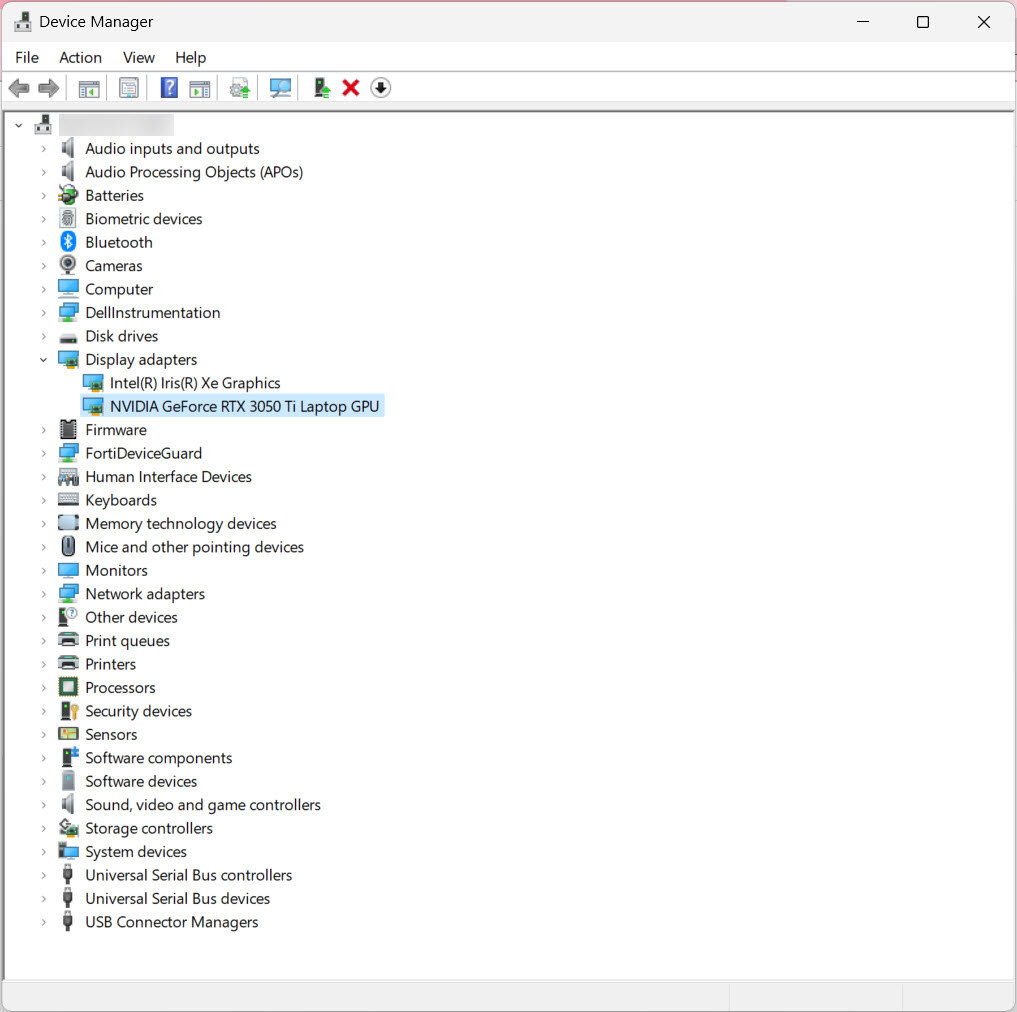
Note: Device Manager often installs older driver versions, not the latest ones.
3. Using Windows Update Tool
Windows Update sometimes provides GPU driver updates automatically.
Steps
- Go to Settings → Update & Security → Windows Update
- Tap Check for Updates
- Windows will install available GPU drivers automatically
However, this method may not provide the newest version available on Nvidia’s website.
4. Using Display Driver Uninstaller (DDU)
Display Driver Uninstaller (DDU) is a powerful tool for removing old drivers completely. If you face issues like black screen, GPU crashes, or flickering, this tool ensures a clean reset.
Steps
- Download DDU
- Boot your PC into Safe Mode
- Run DDU and select Clean and Restart
- After reboot, install the latest Nvidia driver normally
This method is highly recommended when switching between GPUs or fixing corrupted drivers.

Common Problems Fixed by Updating Nvidia Drivers
Updated drivers solve many issues, including:
- Screen tearing during gaming
- Low FPS and lag
- GPU overheating due to improper power settings
- Crashes while launching games
- Display not detected
- HDMI or DisplayPort not working
- Visual bugs or artifacting
Most users notice immediate improvements after updating.
Tips for Safe Driver Updates
- Avoid installing drivers from third-party sites
- Always restart your PC after updates
- Keep Windows updated
- Use Express Installation unless you need advanced control
- If errors occur, use DDU and reinstall drivers
Final Words
Updating your Nvidia GeForce drivers on Windows is essential for better gaming performance, smooth video editing, and overall system stability. Whether you use GeForce Experience for automatic updates or prefer manual downloads for full control, the options are simple and effective. Windows Device Manager, Control Panel, and tools like DDU offer additional ways to manage drivers.
Make a habit of checking for updates regularly, especially before launching new games. With the right driver version installed, your PC will run faster, smoother, and more efficiently every day.