
Transferring files wirelessly between a PC and an Android phone has become faster, smarter, and more reliable in 2025. With new tools, upgraded Wi-Fi technologies, and cross-platform apps, you no longer need USB cables, slow Bluetooth, or email attachments to move data. Whether you want to transfer photos, videos, documents, apps, or even large 10GB+ files, there is always a seamless wireless method available.
Wireless transfers save time, reduce effort, and provide flexibility—especially for people who work digitally. Everything happens within a few taps, and most apps now offer end-to-end encryption for security.
In this guide, we will explore the best wireless methods to transfer files from PC to Android in 2025, including advanced tools, everyday solutions, Wi-Fi direct methods, FTP, SMB, and cloud-based services.
1. Use Third-Party Smart Tools for Fast Wireless Transfer
The most efficient way to transfer files quickly is through professional apps designed for high-speed cross-platform sharing. These apps combine speed, reliability, and no-limit transfers.
Two of the best tools in 2025 are:
- MobileTrans
- AirDroid Personal
Both offer fast, secure, and simple ways to Move files from PC to Android without cables.
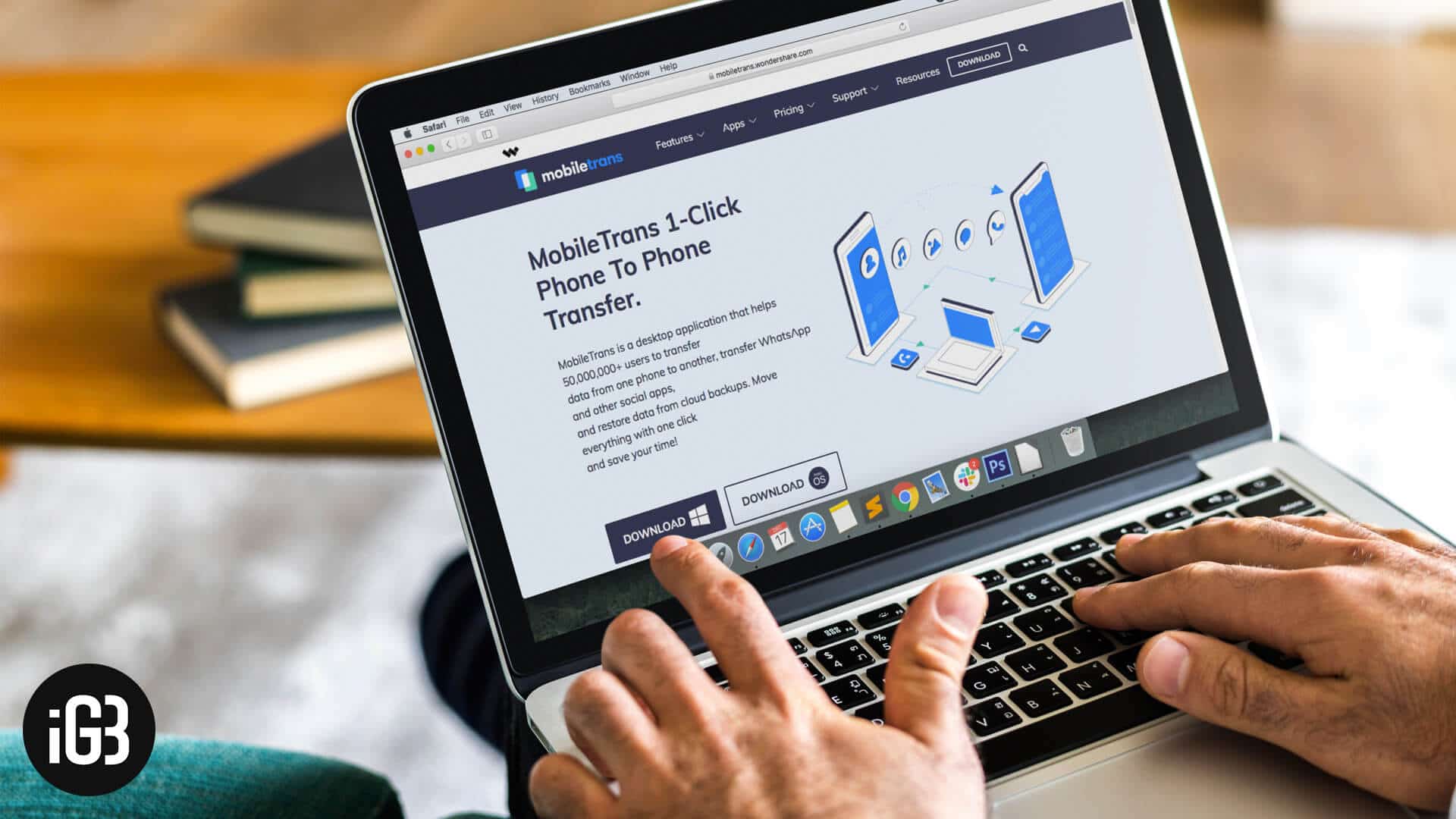
MobileTrans — Best for High-Speed Professional Transfers
MobileTrans is popular for one-click file transfers. It supports nearly every type of file, including:
- Photos
- Videos
- Music
- Documents
- APKs
- Contacts
- Backups
Even better, there are no size limits, making it ideal for people transferring 5GB–20GB files.
How to Use MobileTrans (Step-by-Step)
- Install MobileTrans on your PC.
- Install the MobileTrans app on your Android phone.
- Connect both devices to the same Wi-Fi network.
- Open the PC app → Select File Transfer → Import to Phone.
- Choose the files → Click Import.
- Access files instantly on your Android device.
MobileTrans uses high-speed wireless technology and gives maximum speed based on your Wi-Fi 5 or Wi-Fi 6 signal strength.
MobileTrans Features
- Fast 20x speed compared to Bluetooth
- No cable required
- Multi-device backup
- WhatsApp & app data transfer support
- Works on Windows, Mac, Android, and iOS
2. AirDroid Personal — Full Wireless Device Control
AirDroid is one of the best all-in-one wireless tools. You can:
- Transfer files wirelessly
- Mirror Android screen
- Access SMS and notifications
- Manage files remotely
- Control the device from your PC
It works on both the PC app and the AirDroid Web browser version.
How to Use AirDroid (Step-by-Step)
- Install AirDroid on PC and Android.
- Login with the same email on both devices.
- Select files on the PC.
- Click Send.
- Open AirDroid on your phone → Files appear instantly.
Why AirDroid is Great
- No USB cable required
- Ultra-fast Wi-Fi file speed
- Secure end-to-end encryption
- Easy for beginners and professionals
- Works even when devices are not close (remote transfer)
Whether you’re transferring 2–3 images or 2–3GB files, AirDroid works smoothly everywhere.
3. Simple Everyday Wireless Transfer Methods
If you want quick, basic file transfers without installing heavy software, you can use everyday tools including:
- Bluetooth
- Cloud Storage
- Chat Apps
These methods are perfect for small or occasional file sharing.
Bluetooth — Slow but Universal
Bluetooth works without the internet, but the speed is very slow. It’s only suitable for:
- Small documents
- A few photos
- Light transfers
Steps:
- Enable Bluetooth on PC & Android
- Pair devices
- Send the file from PC
- Accept on your phone
Cloud Storage — Best for Remote Transfer
Cloud services available:
- Google Drive (15GB free)
- OneDrive (5GB free)
- Dropbox (2GB free)
Steps:
- Upload file from PC → Drive
- Open Drive on phone
- Download files
Cloud is stable but requires a good internet connection.
Email — Small File Use Only
Most email platforms allow a 25MB limit.
Use email for:
- Documents
- Small photos
- PDFs
Just attach → send → download on Android.

4. Faster Wi-Fi-Based Transfer Methods (Advanced Users)
If you want maximum speed, Wi-Fi-based transfer methods are the best. These are great for heavy file sharing and local transfers.
Advanced wireless options include:
- Wi-Fi Direct Apps
- FTP
- SMB Network Sharing
Wi-Fi Direct — Superfast Without Internet
Wi-Fi Direct creates a direct high-speed connection between PC and Android.
Apps required:
- SHAREit
- Xender
- Feem
- SuperBeam
Steps:
- Install app on both PC and Android
- Open Send on PC
- Open Receive on Phone
- Transfer at 8–30 Mbps easily
This method is great for:
- Videos
- Movies
- Large folders
- Offline transfers
FTP (File Transfer Protocol)
FTP is a perfect technical method for accessing Android files from your PC browser.
You need a file manager like:
- Solid Explorer
- FX File Explorer
Steps:
- Open Solid Explorer → Start FTP Server
- Copy the FTP address (example:
ftp://192.168.1.5:2121) - Paste it into your PC browser or File Explorer
- Drag and drop files wirelessly
No internet needed—only same Wi-Fi.
This method is extremely fast and professional.
SMB — Best for Permanent Wireless Sharing
SMB lets you permanently connect PC and Android for always-available file sharing.
Steps:
- Enable File Sharing on Windows
- Connect using the phone’s file manager (SMB option)
- Enter PC IP address
- Access all shared folders instantly
Great for office work and multi-device setups.

5. Best Method to Choose in 2025 (Comparison Chart)
| Method | Speed | Best For | Internet Needed | Difficulty |
|---|---|---|---|---|
| MobileTrans | 5 | Large files, backups | No | Easy |
| AirDroid | 4 | Remote access, all files | Yes | Easy |
| Bluetooth | 1 | Small files | No | Very Easy |
| Cloud Storage | 3 | Medium files | Yes | Easy |
| 1 | Tiny files | Yes | Easy | |
| Wi-Fi Direct | 5 | Huge files | No | Medium |
| FTP | 4 | Local fast transfers | No | Medium |
| SMB | 4 | Permanent sharing | No | Hard |
Final Words
Wireless file transfer between PC and Android has become painless in 2025. You can choose your method based on:
- File size
- Transfer speed
- Internet availability
- Simplicity
- Professional needs
MobileTrans and AirDroid are the best overall solutions for most users.
Bluetooth, email, and cloud are good for simple, small transfers.
FTP, SMB, and Wi-Fi Direct offer high-speed advanced sharing without internet.
No matter what you choose, wireless file sharing today is fast, secure, and incredibly easy.