
Running Android apps natively on Windows has become extremely easy in 2025. Whether you want to use mobile apps on a bigger screen, play Android games smoothly, or run productivity apps directly on your PC, there are several methods available today. You can link your Android phone to Windows, use powerful emulators, install Android-x86, or try official tools like Google Play Games Beta.
Windows 11 has greatly improved Android compatibility, making cross-platform use smoother than ever. With the right setup, you can enjoy fast performance, app syncing, notifications, and advanced controls.
In this detailed guide, you will learn all the best methods to run Android apps on a Windows computer. Each method has unique benefits depending on your needs, whether you prefer speed, gaming performance, or full Android features. Let’s get started.
Why Run Android Apps on Windows?
There are many reasons why people want to run Android apps on a laptop or PC. A bigger screen gives better clarity, faster controls, and improved productivity. Gamers enjoy higher FPS, while developers can test apps easily. You can also run apps that may not be available natively on Windows.
Running Android apps on a PC is especially useful for work tasks, communication apps, social media, banking apps, and entertainment platforms. With the right tools, you can turn your PC into a powerful Android workstation.
Another big advantage is storage and processing power. Your PC usually has more RAM and a faster CPU compared to a phone. This results in smoother app performance and better multitasking.

Now, let’s explore each method step-by-step.
1. Link Your Android Phone to Windows (Fastest & Easiest Method)
One of the simplest ways to run Android apps on Windows is by linking your phone using Microsoft’s Phone Link app. This app mirrors apps from your smartphone to your PC in real time.
You can open apps, reply to messages, read notifications, and even control your device — all without touching your phone.
This method is perfect for people who want quick access to phone apps for productivity, messaging, and notifications. It works seamlessly with most Android phones and requires no technical knowledge.
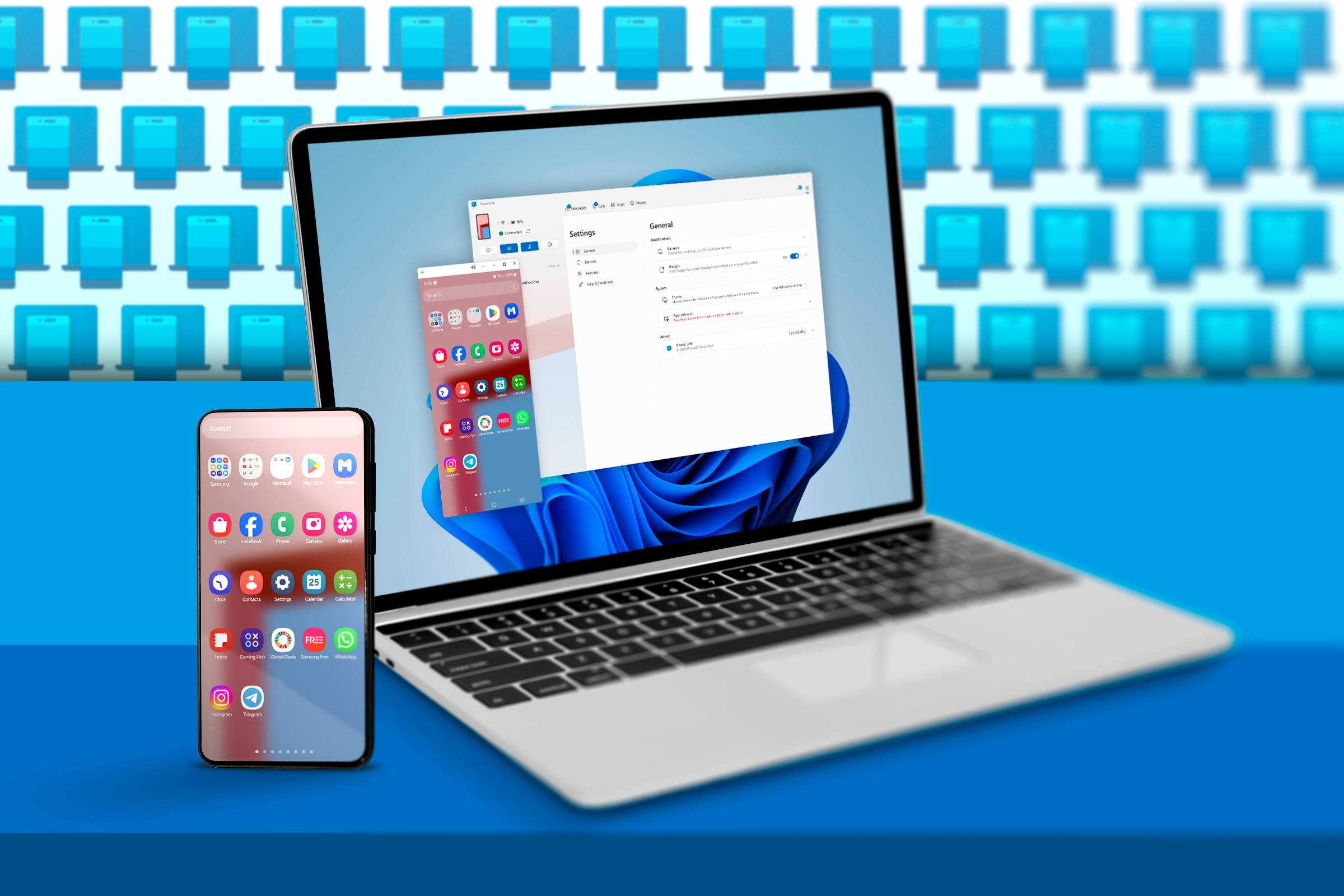
How to Use Phone Link on Windows
Follow these steps:
- Open Phone Link on your Windows PC.
- Install the Link to Windows app from Play Store on your Android phone.
- Scan the QR code on your PC to pair both devices.
- Grant permissions on your phone for app access and notifications.
- Open any Android app directly through the Phone Link interface.
Pros
✔ No installation required
✔ Perfect for messaging apps
✔ Easy and fast setup
✔ Syncs photos, messages, contacts
Cons
✘ Not ideal for heavy games
✘ Slight delay during streaming
✘ Limited file-sharing features
2. Use Android Emulators (Best for Apps & Gaming)
If you want a full Android experience on Windows, emulators are the best solution. These software tools create a virtual Android machine on your PC, allowing you to install apps just like a phone.
BlueStacks, LDPlayer, NoxPlayer, and Genymotion are the most popular choices. Among these, BlueStacks is the most stable and user-friendly for beginners.
Emulators allow you to install apps through the Google Play Store or sideload APK files. They support keyboard mapping, mouse controls, gaming optimization, macros, and more.
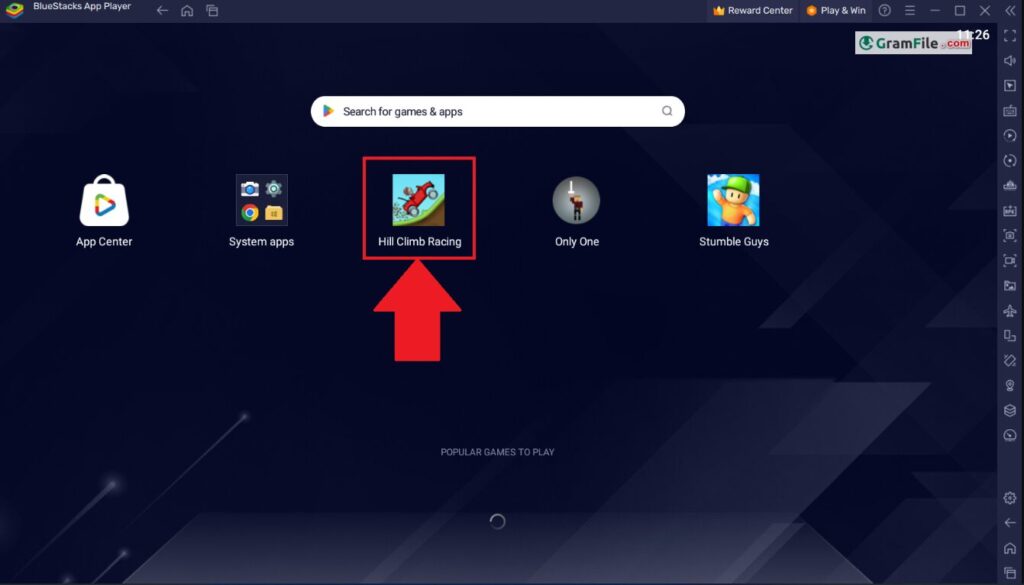
Why BlueStacks Is the Best Emulator
BlueStacks offers:
- Smooth gaming at high FPS
- Play Store support
- Multi-instance feature
- Custom resolutions
- Gamepad support
You can also adjust CPU and RAM usage in settings for even better performance.
How to Install BlueStacks
- Download BlueStacks from the official website.
- Install the setup file and open the emulator.
- Sign in with your Google account.
- Open Play Store and install any app.
- Enjoy Android apps natively on Windows.
Pros
✔ Best performance for games
✔ Supports APK installation
✔ Fully customizable
✔ Runs most Android apps
Cons
✘ Uses more CPU & RAM
✘ Ads in some emulators
✘ Needs virtualization enabled
3. Install Android-x86 (Near-Native Android Experience)
For users who want true native Android performance on Windows hardware, Android-x86 is an excellent option. It is a full Android operating system designed to run on Intel and AMD PCs.
You can install Android-x86 on your hard disk or run it as a live OS using a USB drive.
Android-x86 provides full Android features, including Google Play Store, keyboard/mouse support, and fast processing.
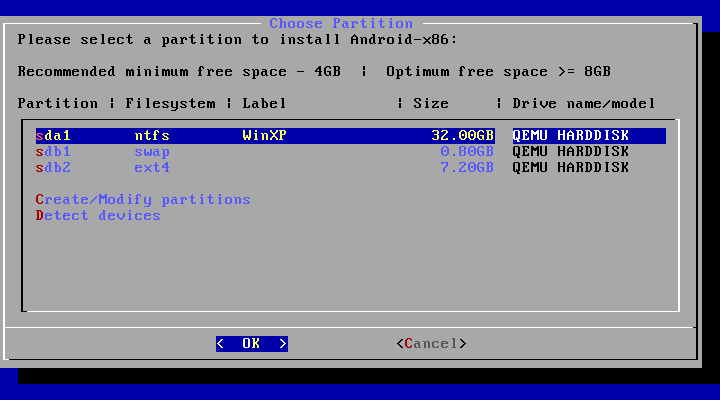
How to Install Android-x86
- Download the Android-x86 ISO file from its official site.
- Use Rufus to create a bootable USB drive.
- Restart your PC and boot from USB.
- Choose “Install Android-x86”.
- Complete installation like a normal OS.
You can also run Android-x86 inside VirtualBox if you don’t want to install it permanently.
Pros
✔ True Android performance
✔ Lightweight OS
✔ No ads
✔ Google Play Store support
Cons
✘ Installation process is technical
✘ Not all apps may work
✘ Limited hardware support
4. Google Play Games Beta (Official Method for Gaming)
Google has officially launched Play Games Beta for Windows, allowing you to play Android games directly on your PC.
This tool provides verified, secure, high-performance gaming support. It syncs your Google account and progress across devices.
It is perfect for users who want to play games like:
- Clash of Clans
- Free Fire MAX
- Candy Crush
- Asphalt 9
- many more
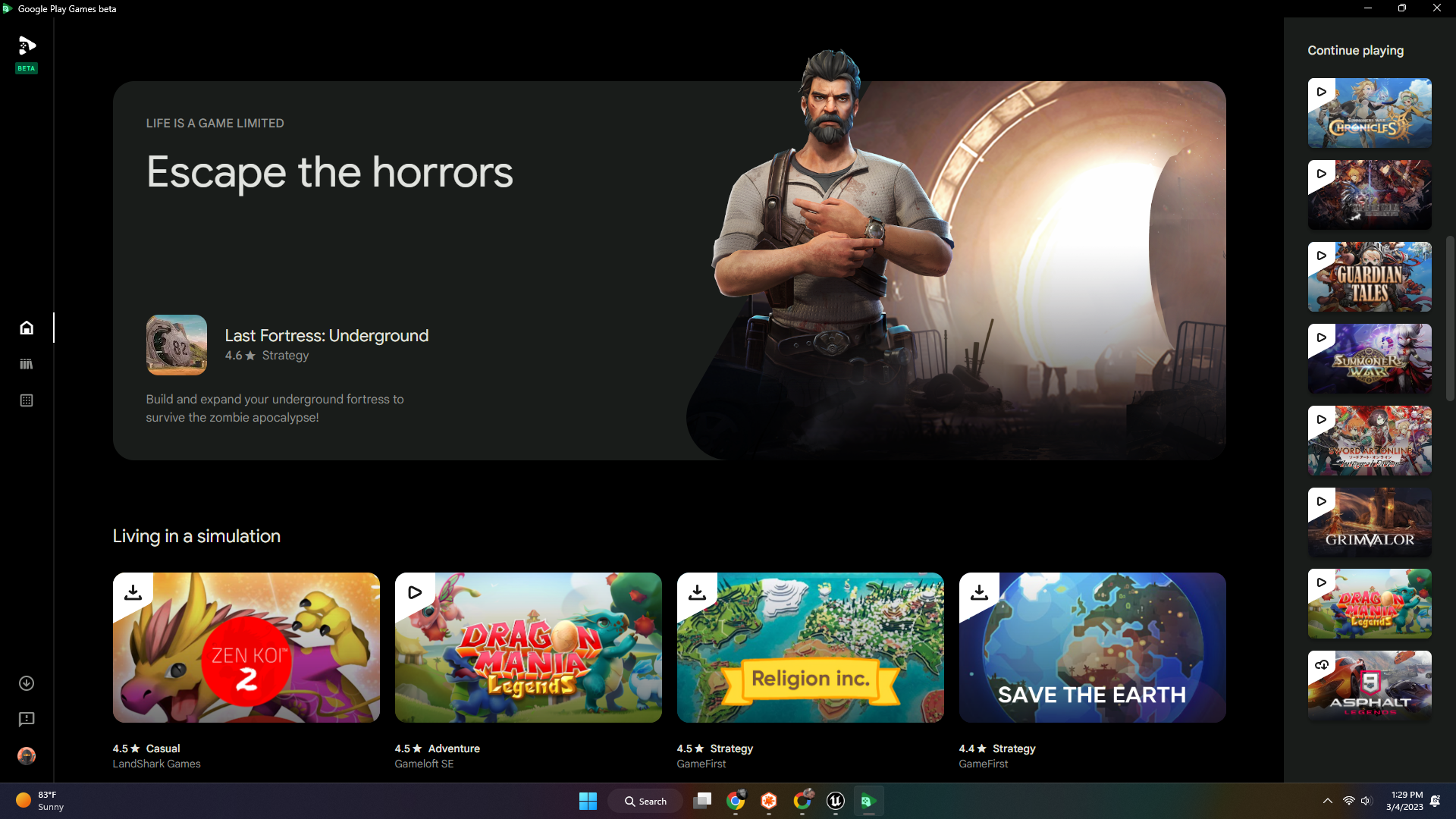
System Requirements
- 8GB RAM
- Quad-core processor
- Windows 10/11
- Hardware virtualization
Pros
✔ Official tool from Google
✔ Best for gaming
✔ Syncs gameplay across devices
Cons
✘ Only supports games, not apps
✘ Limited title availability
Which Method Should You Choose?
| Your Need | Best Method |
|---|---|
| Messaging, notifications, fast access | Phone Link |
| Best gaming experience | BlueStacks / Play Games Beta |
| Full Android OS | Android-x86 |
| Sideloading APK files | Emulators |
| Low-end PC | Android-x86 or LDPlayer |
Each method works differently, so choose based on your requirements.
Tips for Best Performance While Running Android Apps
Here are some tips to improve speed and performance:
- Enable Virtualization (VT-x/AMD-V) in BIOS
- Keep your graphics drivers updated
- Close background apps before running emulators
- Allocate more RAM and CPU to the emulator
- Use SSD storage for faster load times
Following these tips ensures lag-free performance and faster app loading.
Final Words
Running Android apps natively on Windows is now easier than ever. You can link your phone for simple mirroring, use emulators for powerful app support, or install Android-x86 for a complete Android experience. Google Play Games Beta offers an official way to enjoy mobile gaming on your PC.
Choose the method that matches your needs — whether it’s gaming, productivity, or full Android usage. With the right setup, your Windows PC becomes a powerful Android machine.