
Locking a chat in WhatsApp is one of the biggest privacy upgrades introduced for users in 2025. Whether you use Android or iPhone, this feature helps you hide private conversations inside a secure, hidden folder. The Locked Chats folder requires authentication using your fingerprint, PIN, passcode, or Face ID—keeping your private messages away from unwanted access.
This feature is perfect for users who share their phones with family, friends, or colleagues. Once a chat is locked, it disappears from the main chat list and remains fully protected. Even notifications become private, showing only “WhatsApp: 1 new message” without revealing the sender name or message preview.
In this guide, you will learn how to lock a chat in WhatsApp, how to unlock it, the benefits, and the security features available on both Android and iPhone.
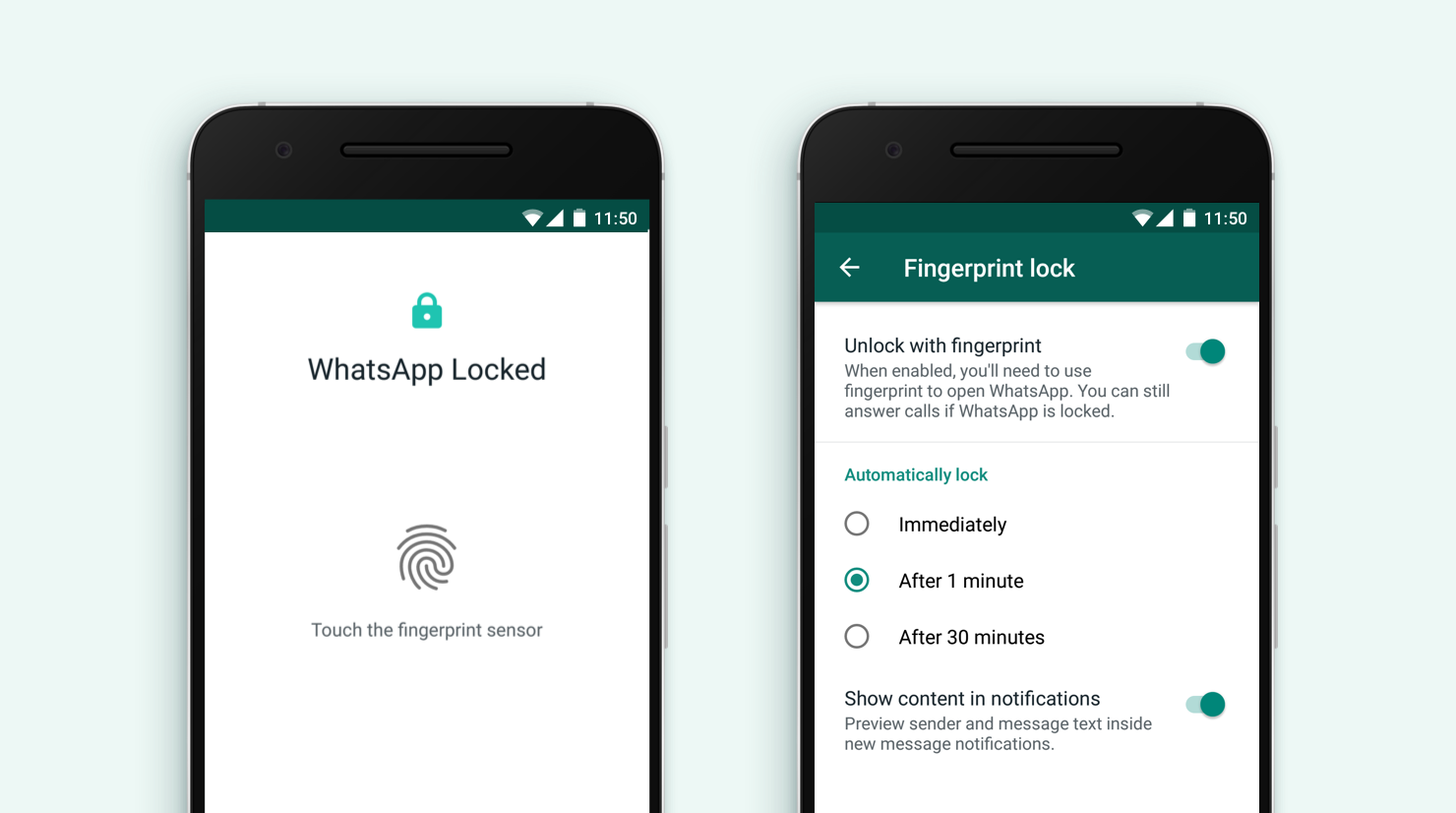
What Is the Chat Lock Feature in WhatsApp?
The Chat Lock feature allows you to protect selected conversations by placing them inside a hidden folder known as Locked Chats. These chats no longer appear on the main chat screen and cannot be seen by others who check your phone. The only way to access them is through your device authentication.
The feature enhances privacy, especially for users who deal with sensitive information such as business discussions, financial chats, private relationships, or personal family matters. WhatsApp hides everything—including message content, media, and sender details—making it impossible for someone to spy on your notifications.
With the Chat Lock feature, you get control over your privacy without needing third-party apps or additional software. Everything is built into WhatsApp’s official security system.
Key Features of WhatsApp Chat Lock (2025 Update)
WhatsApp upgraded the Chat Lock system in 2025 with more robust features and improved privacy controls. Here’s what you get:
1. Selective Chat Locking
You can lock individual chats or groups. This is helpful if you want to protect only a few private conversations rather than the entire WhatsApp app.
2. Hidden Notifications
Message notifications from locked chats do not show the sender name or preview. This ensures full privacy even when your phone is unlocked.
3. Biometric & Password Protection
You can authenticate using:
- Fingerprint (Android)
- PIN or Pattern (Android)
- Face ID (iPhone)
- Passcode (iPhone)
4. Dedicated Hidden Folder
All locked chats automatically move to a secure folder called Locked Chats, accessible only after authentication.

How to Lock a Chat in WhatsApp on Android
Locking a chat on Android is straightforward. Make sure your phone has biometric authentication or a screen lock enabled.
Step-by-Step Guide:
- Open WhatsApp on your Android phone.
- Go to the Chats tab.
- Long-press the chat you want to lock.
- Tap the three-dot menu at the top-right corner.
- Select Chat Lock.
- Tap Continue.
- Authenticate using your fingerprint, PIN, or pattern.
Once done, your chat will automatically move to the Locked Chats folder.
How to Open Locked Chats on Android
- Open WhatsApp.
- Swipe down on the Chats screen.
- Tap Locked Chats.
- Authenticate with your fingerprint or PIN.
Your locked chats will now be visible until you exit the folder.
How to Lock a Chat in WhatsApp on iPhone (iOS)
iPhone users get the benefit of Face ID, making the locking process extremely secure and convenient.
iOS Chat Lock Steps:
- Open WhatsApp on your iPhone.
- Select the chat you want to lock.
- Tap the contact or group name at the top.
- Scroll down and choose Chat Lock.
- Turn on Lock This Chat.
- Authenticate using Face ID or your passcode.
The chat will now be hidden inside the Locked Chats folder.
How to Open Locked Chats on iPhone
- Go to WhatsApp’s Chats screen.
- Swipe down to reveal Locked Chats.
- Authenticate with Face ID or passcode.
Your locked chats will appear instantly.

How to Unlock a Chat in WhatsApp on Android and iOS
If you no longer want to keep a chat hidden, you can easily unlock it. Once unlocked, it reappears in the main chat list and notifications show normally.
Unlocking on Android
- Open WhatsApp.
- Swipe down to open Locked Chats.
- Authenticate with fingerprint or PIN.
- Long-press the chat you want to unlock.
- Tap the three dots.
- Select Unlock Chat.
- Authenticate again to confirm.
The chat will return to your main chat list.
Unlocking on iPhone (iOS)
- Open WhatsApp → swipe down → tap Locked Chats.
- Authenticate with Face ID or passcode.
- Open the chat you want to unlock.
- Tap the contact name at the top.
- Scroll and choose Unlock Chat.
- Authenticate again.
The chat will now be restored to your home screen.
Why Should You Use WhatsApp Chat Lock? (Benefits in 2025)
Chat Lock is extremely beneficial for privacy-focused users. Here’s why you should enable it:
1. Protect Personal Conversations
Keep sensitive chats hidden from family members, friends, kids, or coworkers who may use your phone.
2. Hide Surprise or Confidential Messages
Planning a surprise party or making financial decisions? Keep it private.
3. Prevent Notification Snooping
Even if someone sees your phone screen, they cannot read notifications from locked chats.
4. Avoid Installing Third-Party Locking Apps
WhatsApp Chat Lock is secure and official—far safer than third-party locker apps.
5. Multi-Layer Protection
Biometrics + WhatsApp security = maximum privacy.
Tips to Maximize WhatsApp Chat Privacy in 2025
Here are some additional privacy measures to enhance your security further:
Turn Off Notification Previews
- Go to WhatsApp → Settings → Notifications.
- Disable Notification Preview.
Enable WhatsApp App Lock
You can lock the whole app using:
- Fingerprint (Android)
- Face ID / Passcode (iPhone)
Disable Linked Devices Access
Go to Settings → Linked Devices and remove unknown logins.
Use Disappearing Messages
Enable disappearing messages for sensitive chats.
Use Two-Step Verification
A 6-digit PIN adds extra security.
Common Questions About WhatsApp Chat Lock (FAQ)
1. Can someone see my locked chats?
No, locked chats are hidden and accessible only after authentication.
2. Will media from locked chats appear in the gallery?
No, WhatsApp automatically stops media visibility from locked chats.
3. Can I lock multiple chats?
Yes, you can lock as many chats as you want.
4. Are locked chats backed up?
Yes, but their visibility depends on security settings during restore.
5. Does Chat Lock work for WhatsApp Business?
Yes, the feature works on both WhatsApp and WhatsApp Business.
Final Words
Locking a Chat in WhatsApp on Android and iOS is one of the best ways to protect your private conversations in 2025. With hidden notifications, biometric security, and a dedicated Locked Chats folder, WhatsApp ensures maximum privacy for your sensitive messages.
Whether you’re an Android or iPhone user, locking and unlocking chats takes only seconds. This feature is ideal for keeping personal information protected, avoiding snooping, and maintaining complete control over your conversations.
If you value privacy, WhatsApp’s Chat Lock is a must-use feature.