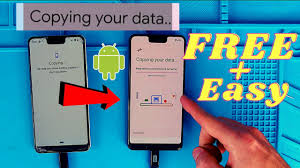
Transferring data from an old phone to a new one has become easier than ever, but many users still feel confused about the best method. Whether it is photos, contacts, apps, messages, or files, nobody wants to lose important data when switching phones.
The good news is that both Android and iPhone offer multiple simple and safe ways to move your data. These include cloud backups, cable transfer, wireless transfer apps, and brand-specific migration tools.
This complete guide covers Android to Android, iPhone to iPhone, Android to iPhone, and iPhone to Android transfers step-by-step, ensuring that you move everything correctly without losing a single file.
What You Should Know Before Starting
Before beginning the transfer process, it’s important to prepare both your old and new phones. Proper preparation ensures that the transfer happens smoothly without interruptions.
Make sure both phones are fully charged or connected to a charger during the transfer. Some transfers can take hours depending on the size of your data—especially if you have thousands of photos or large apps.
Also, ensure that both phones have the latest system updates installed. Updated software reduces compatibility issues and improves transfer speed.
Important Pre-Transfer Checklist
Before transferring data, follow these essential steps:
- Charge both phones to at least 80%.
- Connect to a stable Wi-Fi network.
- Update the old phone to its latest software version.
- Know your Google/Apple ID login details.
- Remove unnecessary apps and files to reduce transfer time.
- Increase screen timeout to avoid interruptions.
- Backup your old phone completely.
These steps prevent failures and ensure your data stays safe during the transfer.
Transfer Data: Android to Android
Moving data from one Android phone to another is very easy because Google provides built-in tools. Most Android brands such as Samsung, Xiaomi, Vivo, Oppo, Lenovo, Motorola, LG, and OnePlus have their own specialized transfer apps.
For Samsung phones, Smart Switch automatically moves everything—apps, photos, videos, contacts, call logs, messages, and even settings. OnePlus uses OnePlus Switch, LG uses Mobile Switch, and Google Pixel devices include a built-in Data Transfer Tool.
Method 1: Transfer Using Google Drive Backup
This is the simplest method and works on any Android phone.
Step-by-Step:
- On your old phone, open Settings → System → Google → Backup.
- Turn on Backup to Google Drive and tap Backup Now.
- On your new phone, during setup, choose Restore from Cloud.
- Sign in with the same Google account.
- Select the latest backup and restore your data.
This restores apps, call logs, Wi-Fi passwords, contacts, and most settings.
Method 2: Transfer Using a Cable
A wired transfer is faster and transfers more data than cloud backups.
Steps:
- Connect both phones using a USB-C to USB-C cable.
- During setup, the new phone will detect the old one.
- Select data like apps, photos, contacts, messages, audio, and files.
- Start transfer and wait until everything is copied.
A wired transfer is ideal if you have large storage data, such as 50GB+ photos or video files.

Method 3: Transfer Using Brand-Specific Apps
Brand tools offer the smoothest transfer experience.
Common tools include:
- Samsung Smart Switch
- Google Pixel Data Transfer Tool
- OnePlus Switch
- LG Mobile Switch
- Copy My Data (works for all brands)
Install the app on both phones → place phones close → follow on-screen instructions → choose what to transfer → start.
These apps can transfer:
- Photos & videos
- Contacts & call logs
- Apps & APKs
- Music
- Text messages
- Wallpapers & some settings
Transfer Data: iPhone to iPhone
Apple offers the easiest and most seamless data transfer system. You can move everything—apps, photos, Apple ID data, messages, and even home screen layout.

Method 1: Using iCloud Backup
Steps:
- On the old iPhone, go to Settings → Apple ID → iCloud → iCloud Backup.
- Tap Back Up Now.
- Turn on the new iPhone.
- Choose Restore from iCloud Backup.
- Log in and select the latest backup.
All apps, data, messages, and settings will transfer automatically.
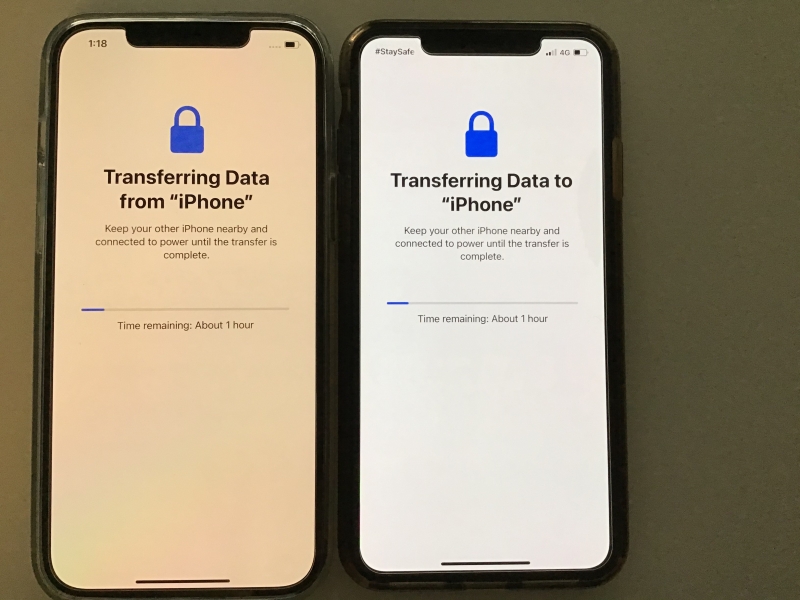
Method 2: Quick Start (Device-to-Device Transfer)
This is the fastest and most accurate method.
How to Use it:
- Place the new and old iPhones close.
- A Quick Start popup appears automatically.
- Scan the animation on the new phone using the old phone.
- Choose Transfer from iPhone.
- Keep phones close until transfer completes.
This method copies everything exactly, including stored passwords and wallpapers.
Transfer Data: Android to iPhone
Switching from Android to iPhone is completely possible using Apple’s official Move to iOS app.

Steps to Transfer:
- Install Move to iOS on your Android phone.
- Start setting up the new iPhone.
- Select Move Data from Android.
- Enter the security code shown on the iPhone.
- Select data such as contacts, messages, photos, calendars, and Google account info.
- Start transfer.
Note:
- Some Android apps won’t transfer. You must install iOS versions manually.
- Paid apps must be purchased again from the App Store.
- Music needs to be synced using iTunes or the Music app on Mac.
Transfer Data: iPhone to Android
Moving from an iPhone to Android requires a few steps, but it’s not difficult. The most important step is to disable iMessage and FaceTime on the old phone to avoid message delivery issues.
Android brands like Google, Samsung, and Xiaomi offer special tools to move data easily.

Steps to Transfer iPhone Data to Android
- Turn off iMessage: Settings → Messages → iMessage OFF
- Turn off FaceTime: Settings → FaceTime → OFF
- Use transfer apps like:
- Samsung Smart Switch
- Google Data Transfer Tool
- Move to Android (for Pixel phones)
- Login with your Google account on the new Android phone.
- Sync contacts, calendars, notes, and email.
- Use Google Photos to move images and videos easily.
- Transfer music using iTunes or Mac Music app.
This method moves most data except certain iPhone-only apps and files.
Tips for Safe & Smooth Transfer
Before transferring data, keep in mind the following important tips:
- Always back up the old phone completely.
- Keep both phones fully charged.
- Use original branded cables for cable transfer.
- If Wi-Fi is unstable, use wired transfer instead of wireless apps.
- Large transfers may take 1–3 hours, so be patient.
- Move SIM or eSIM only after setup is complete.
- After the transfer ends, verify everything copied correctly.
- Keep the old phone for a few days before resetting it.

Final Words
Transferring data from an old phone to a new phone is much easier today, thanks to tools like Google Backup, iCloud, Quick Start, Smart Switch, and Move to iOS. With proper preparation, stable Wi-Fi, and brand-specific apps, you can transfer all your important photos, videos, contacts, apps, messages, and settings safely.
Whether you’re switching from Android to Android, iPhone to iPhone, or even cross-platform (Android ↔ iPhone), this guide ensures the process is smooth and accurate. Always back up your data first and follow the correct method based on your device.
With this complete guide, you can now enjoy your new phone confidently without worrying about losing any important information.