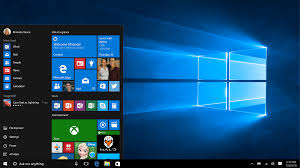
If you have an old Windows laptop that is slowing down or no longer receives updates, there’s a simple solution to give it new life for free. Google’s ChromeOS Flex is a lightweight, fast, and secure operating system that can transform outdated Windows PCs into Chromebooks.
ChromeOS Flex is ideal for users who mainly use their laptops for web browsing, streaming, writing documents, and online tasks. Unlike Windows, it is not resource-intensive and runs smoothly even on older hardware.
Many old laptops struggle to run Windows efficiently after a few years. Security updates may end, and system performance declines. Installing ChromeOS Flex allows you to reuse your old device without spending money on a new computer.
Why Choose ChromeOS Flex?
ChromeOS Flex is developed by Google and focuses on simplicity and speed. It runs mostly on the Chrome browser, which means most daily tasks like using Gmail, Google Docs, YouTube, and other web apps are fully supported.
Unlike Windows, ChromeOS Flex is secure, updates automatically, and boots in seconds. It does not require heavy maintenance, antivirus software, or complex configurations.
It’s also perfect for those who don’t plan to upgrade to Windows 11 or macOS. You get a modern interface, fast performance, and a lightweight system that keeps your old laptop functional.

Requirements Before Installing ChromeOS Flex
Before starting, make sure you have all the necessary items and have taken precautions. Installing ChromeOS Flex erases all existing data, so backing up files is crucial.
Things You’ll Need:
- An old Windows laptop or desktop.
- USB drive or SD card with at least 8GB storage.
- Google Chrome browser installed.
- A Google account for signing in.
- Stable internet connection.
Important: All data on your laptop and USB drive will be deleted during installation. Ensure you backup important files before proceeding.
Step-by-Step Guide to Install ChromeOS Flex
Step 1: Check Compatibility
First, check if your laptop is compatible with ChromeOS Flex. Google provides a list of certified devices that work best. However, many older or unsupported laptops also run ChromeOS Flex smoothly.
If your laptop cannot upgrade to Windows 11, ChromeOS Flex is an excellent alternative. It supports Intel and AMD processors and many laptops that are over 8-10 years old.
Step 2: Install the Chromebook Recovery Utility
Open Google Chrome on your current laptop. Visit the Chrome Web Store and install the Chromebook Recovery Utility extension.
After installation, click the puzzle icon near the address bar, open the tool, and click Get Started. Choose Google ChromeOS Flex as the manufacturer and product.

Step 3: Create the Bootable USB Drive
Insert your USB drive or SD card. In the Recovery Utility, select your device, choose the Stable ChromeOS Flex build, and click Create Now.
The tool will download files and prepare the drive. This process usually takes 10–15 minutes, depending on your internet speed. Once complete, safely remove the USB drive.
Step 4: Boot from the USB Drive
Plug the ChromeOS Flex USB drive into the laptop you want to upgrade. Restart the laptop.
If it doesn’t boot automatically, enter the BIOS setup (usually F2, F12, or DEL during startup), change the boot order to prioritize USB, save changes, and restart.
Step 5: Try ChromeOS Flex First
When ChromeOS Flex loads, you can try it without installing. Choose Try it first to test hardware compatibility and system performance.
Sign in with your Google account, check Wi-Fi, sound, touchpad, and other functions. This ensures your laptop works well before replacing Windows.

Step 6: Install ChromeOS Flex Permanently
If the test works fine, restart with the USB drive still inserted and choose Install ChromeOS Flex. Follow on-screen instructions carefully.
The installation will erase Windows completely and replace it with ChromeOS Flex. After installation, your laptop will boot into ChromeOS automatically.
Step 7: Erase Your USB Drive
Once installation is complete, you can reuse your USB drive. Open the Chromebook Recovery Utility, click the settings icon, select Erase recovery media, and format the drive back to normal.
Benefits of Using ChromeOS Flex
- Fast and Lightweight: Boots in seconds and runs smoothly on older hardware.
- Secure and Updated: Automatic Google updates keep your device safe.
- Easy to Use: Minimal settings and a clean interface.
- Supports Many Devices: Works on old PCs and Macs.
- Ideal for Everyday Use: Perfect for browsing, streaming, and writing.
Even laptops over a decade old can feel like new, thanks to the reduced resource requirements.

Limitations to Keep in Mind
While ChromeOS Flex is excellent for general use, it has some restrictions:
- Cannot install Android apps.
- No support for Parallels or Linux environments.
- Limited to Intel and AMD processors.
- Some hardware features may not work fully.
- Internet connection is required for most tasks.
These limitations are minor if your goal is a fast, simple, and online-focused laptop.
Conclusion
Turning an old Windows laptop into a Chromebook using ChromeOS Flex is free, smart, and eco-friendly.
It provides a modern interface, fast performance, and security, making old hardware usable for years to come. ChromeOS Flex is ideal for students, casual users, or anyone wanting a lightweight computing experience.
Instead of discarding old laptops, install ChromeOS Flex and enjoy a fresh, modern, and safe system without spending a penny.
